In this tutorial, you’ll learn how to upload a GeoJSON file into FusionMap, making it easy to visualize and work with your spatial data.
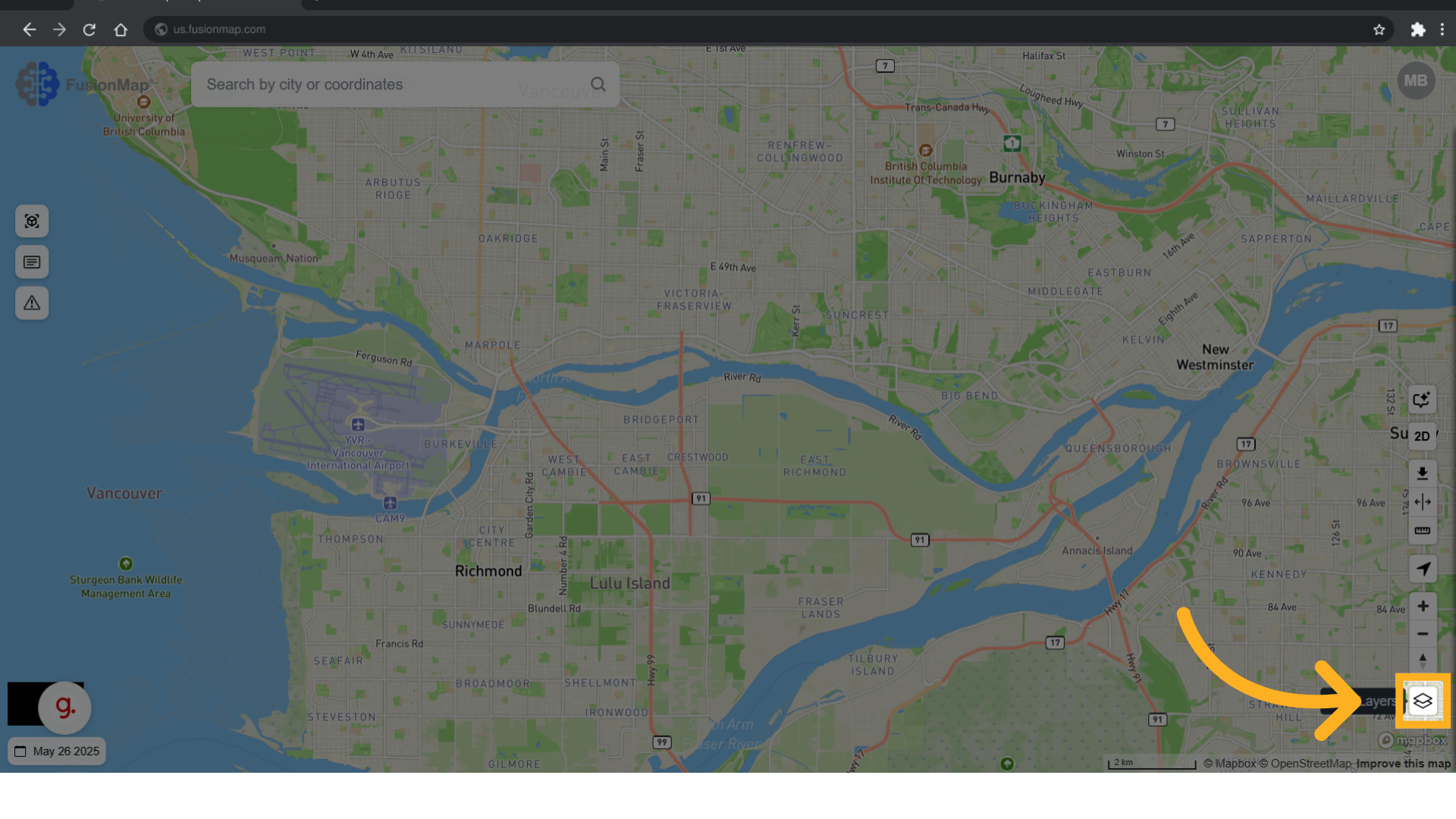
1. Open “Layers” #
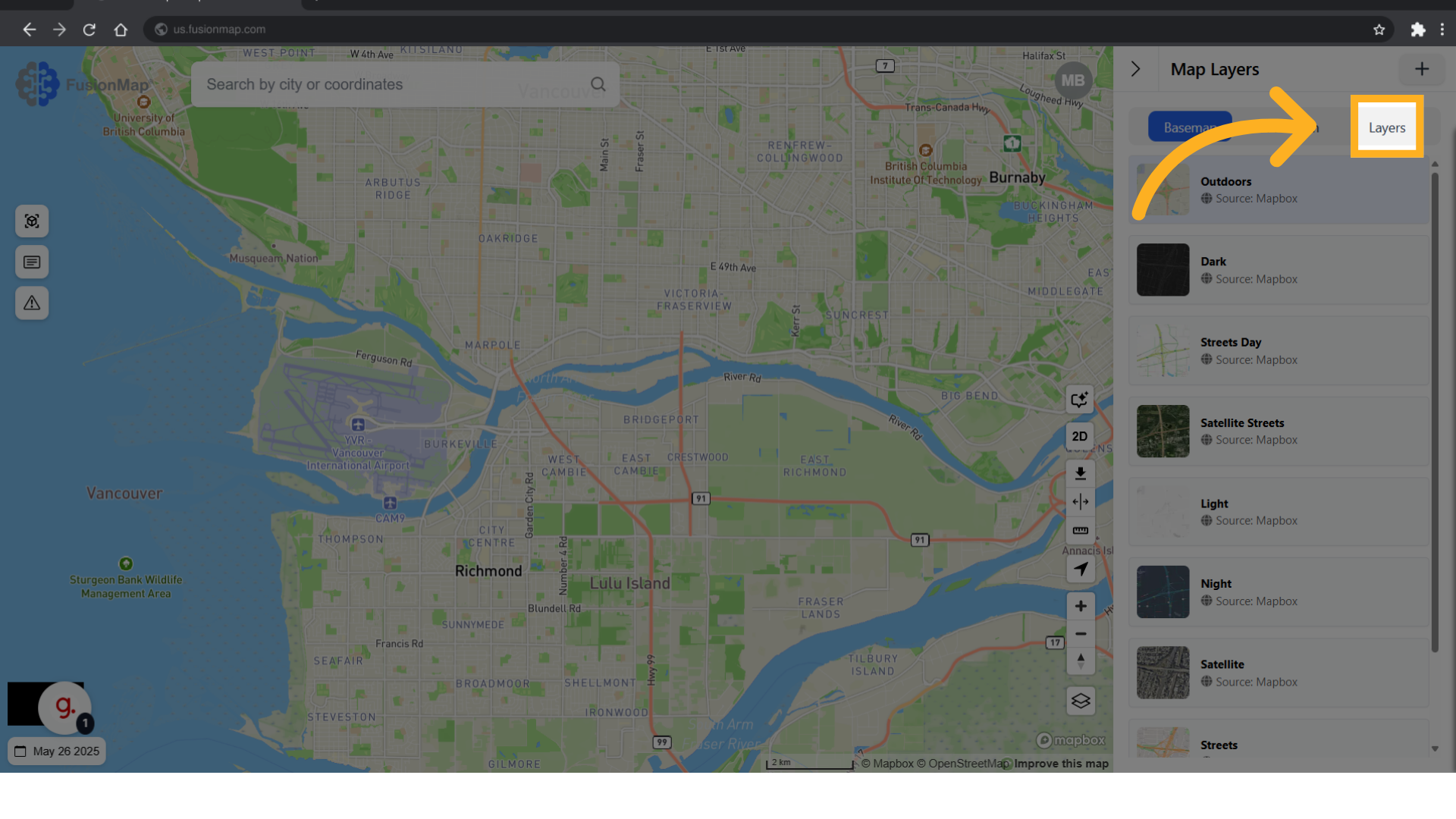
2. Switch to the layers tab #
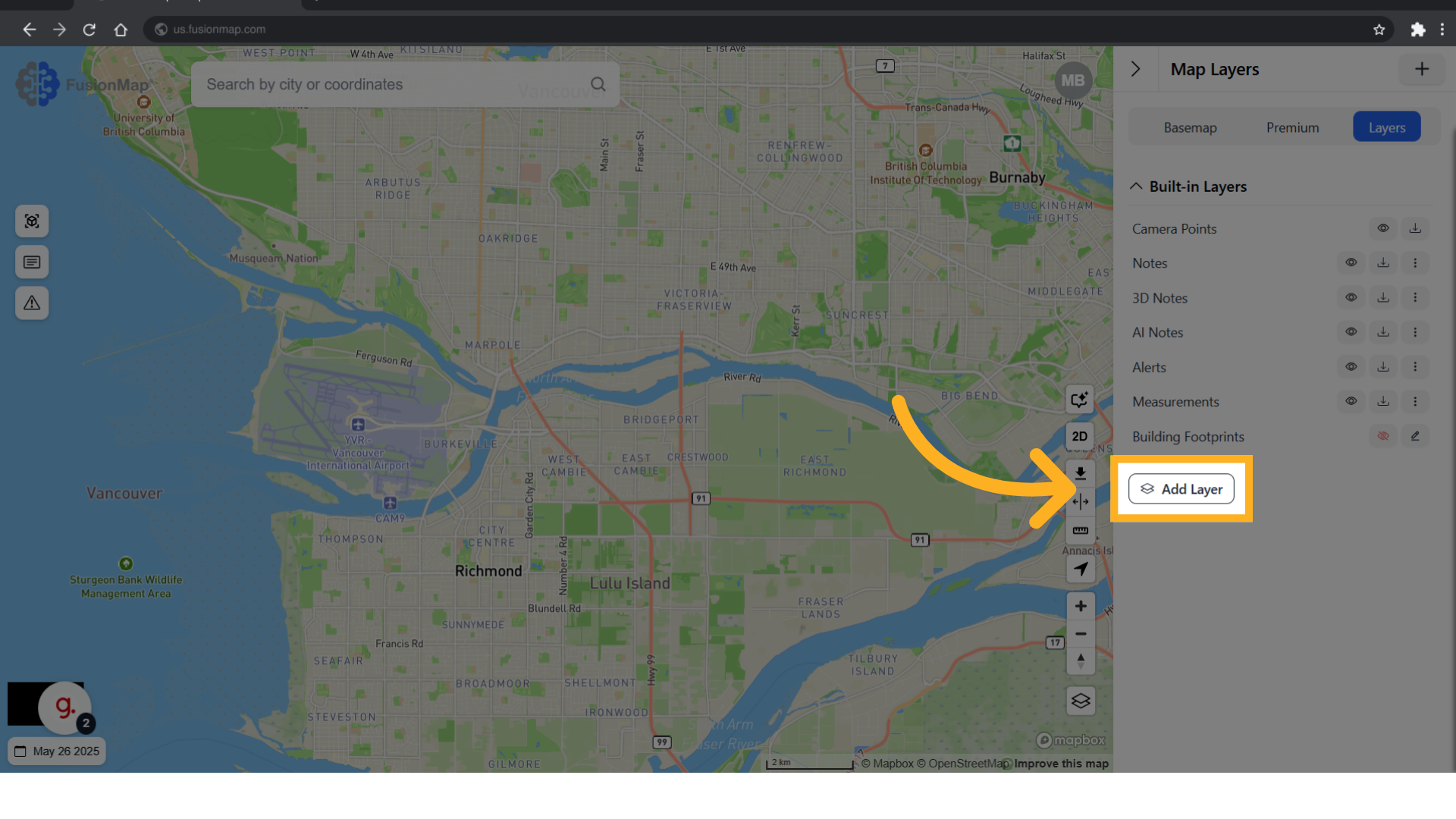
3. Click “Add Layer” #
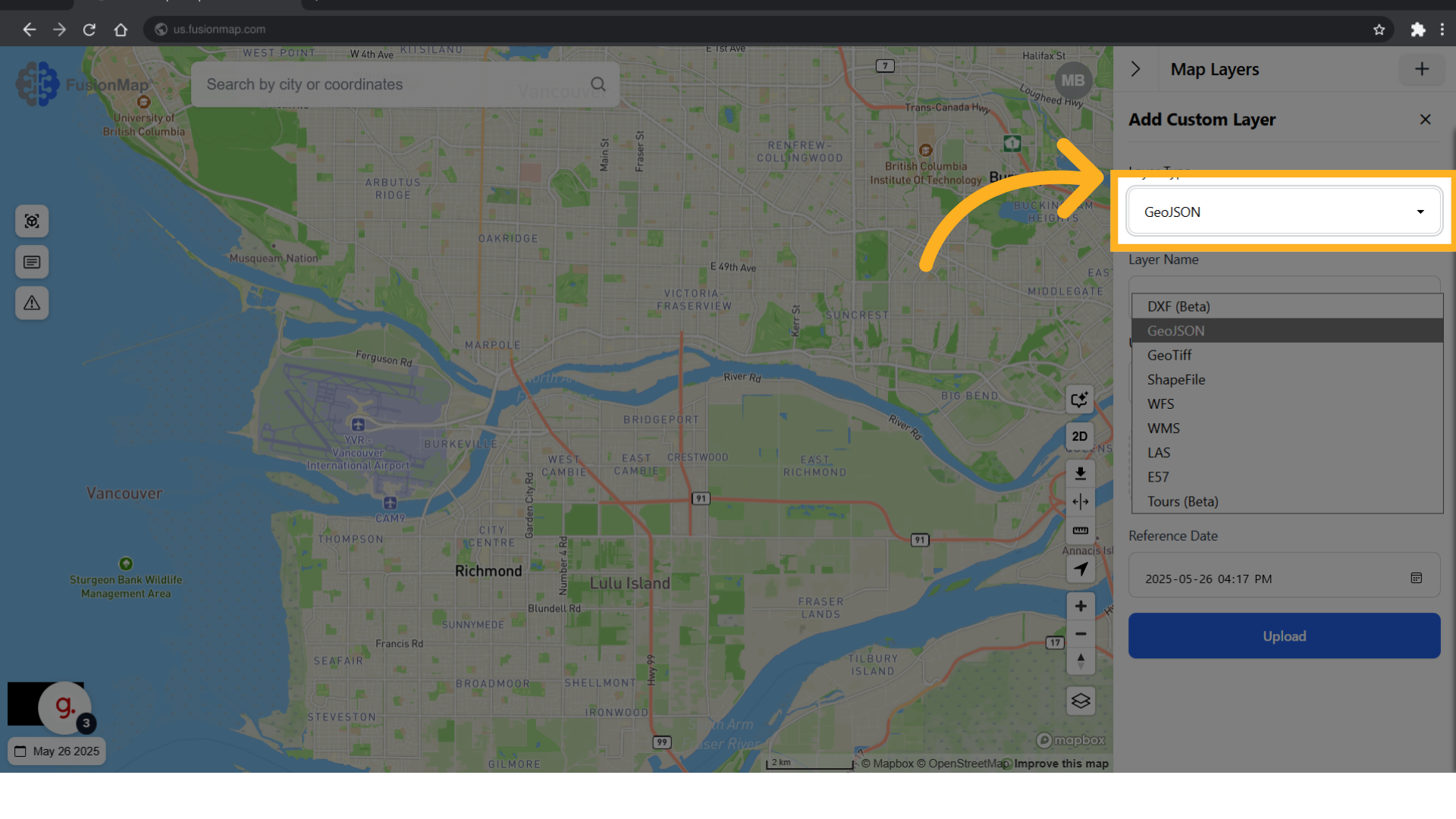
4. Choose GeoJSON from the Layer Type Menu #
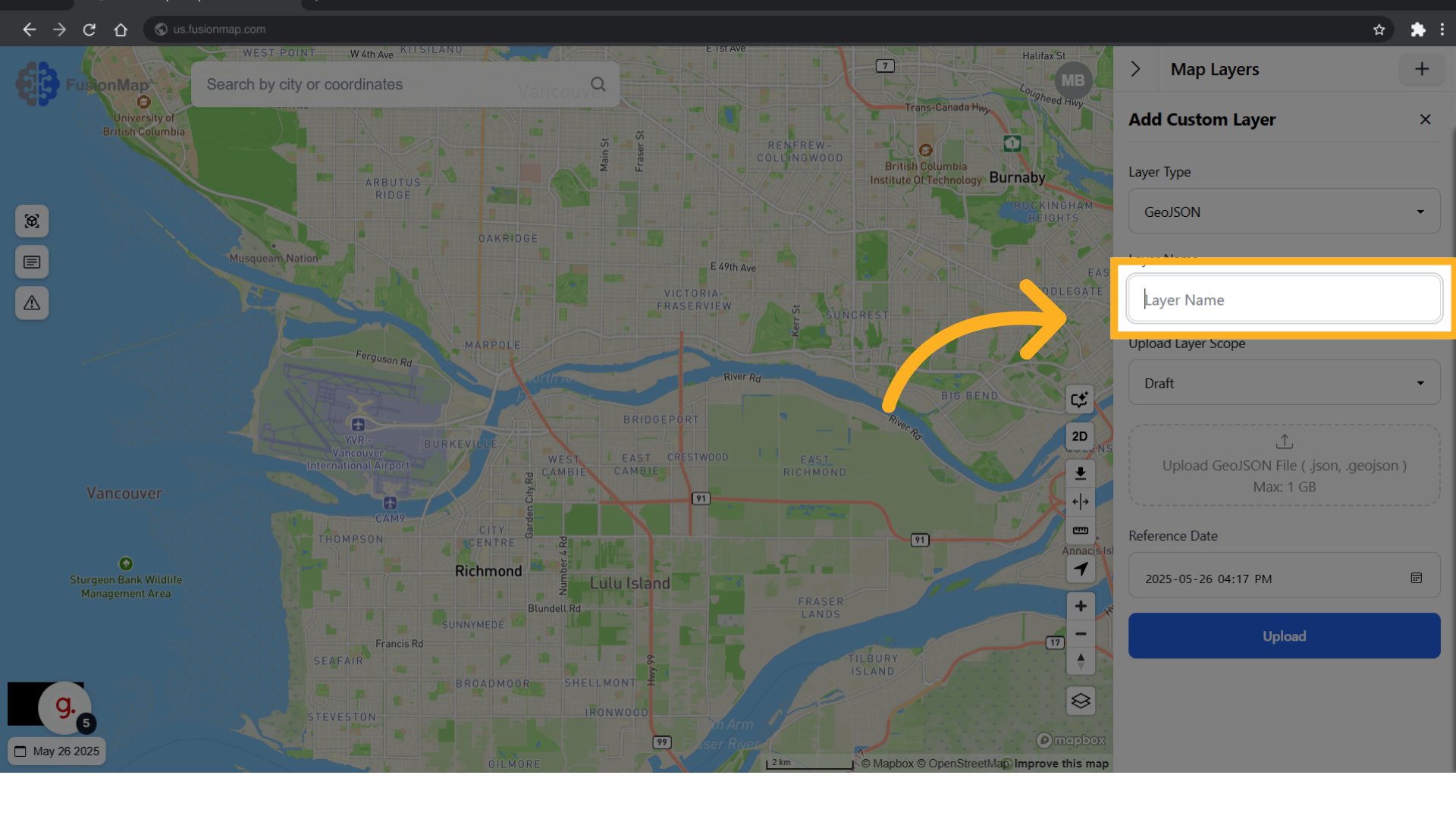
5. Populate Layer Details #
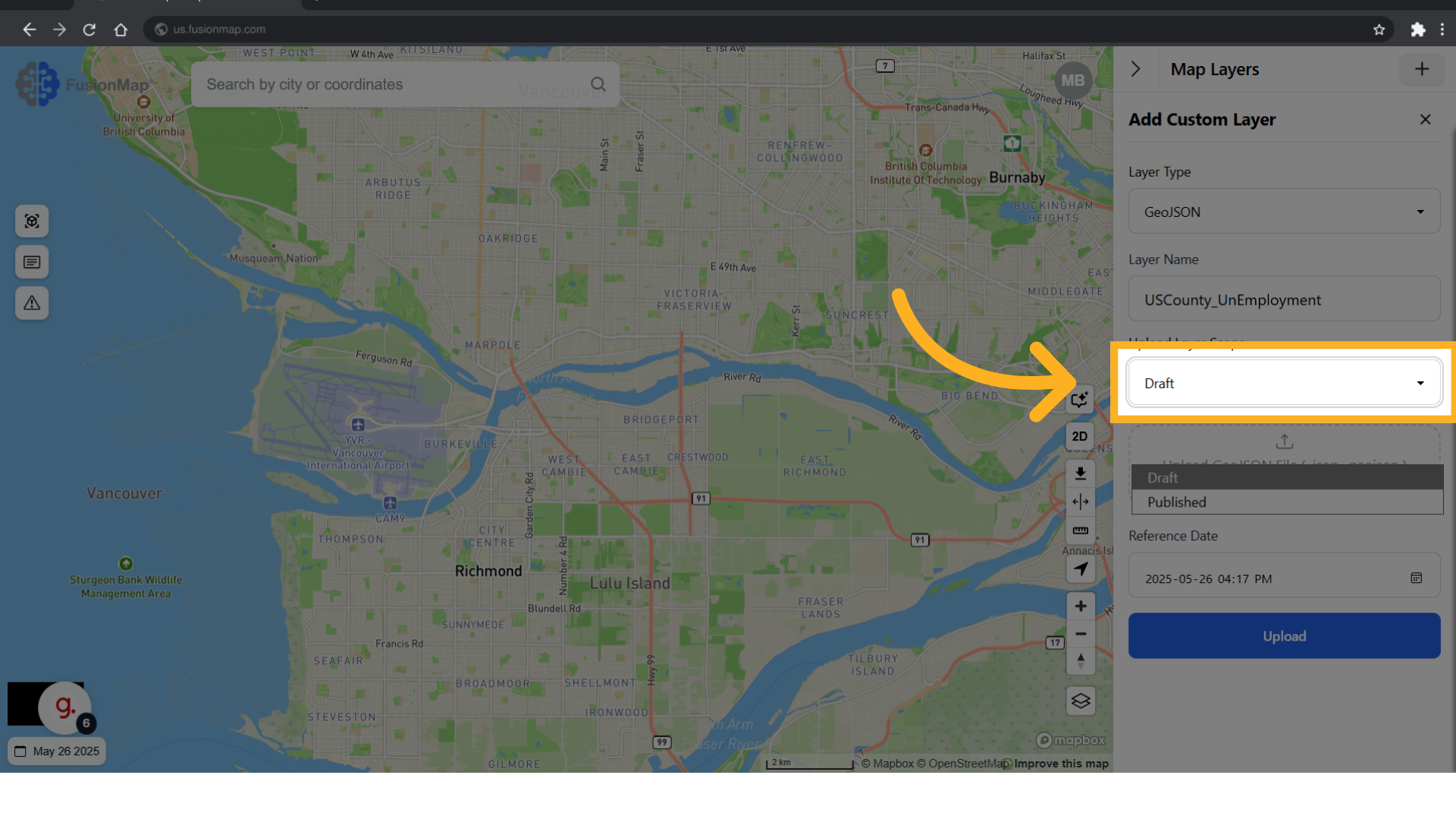
6. Choose between draft or published #
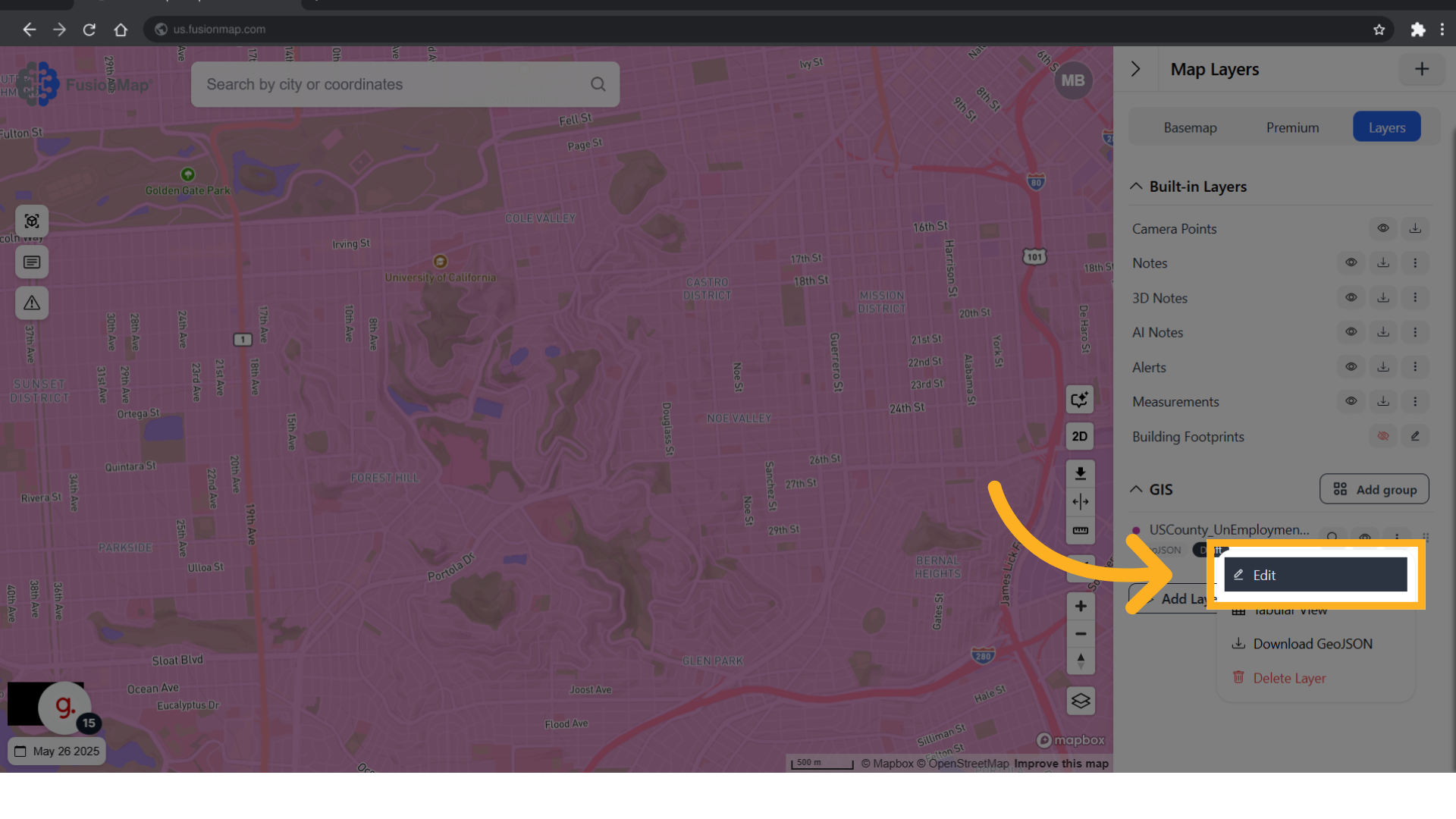
Choosing “draft” makes the layer accessible only to you. Choosing “published” makes the layer accessible to every user in the project.
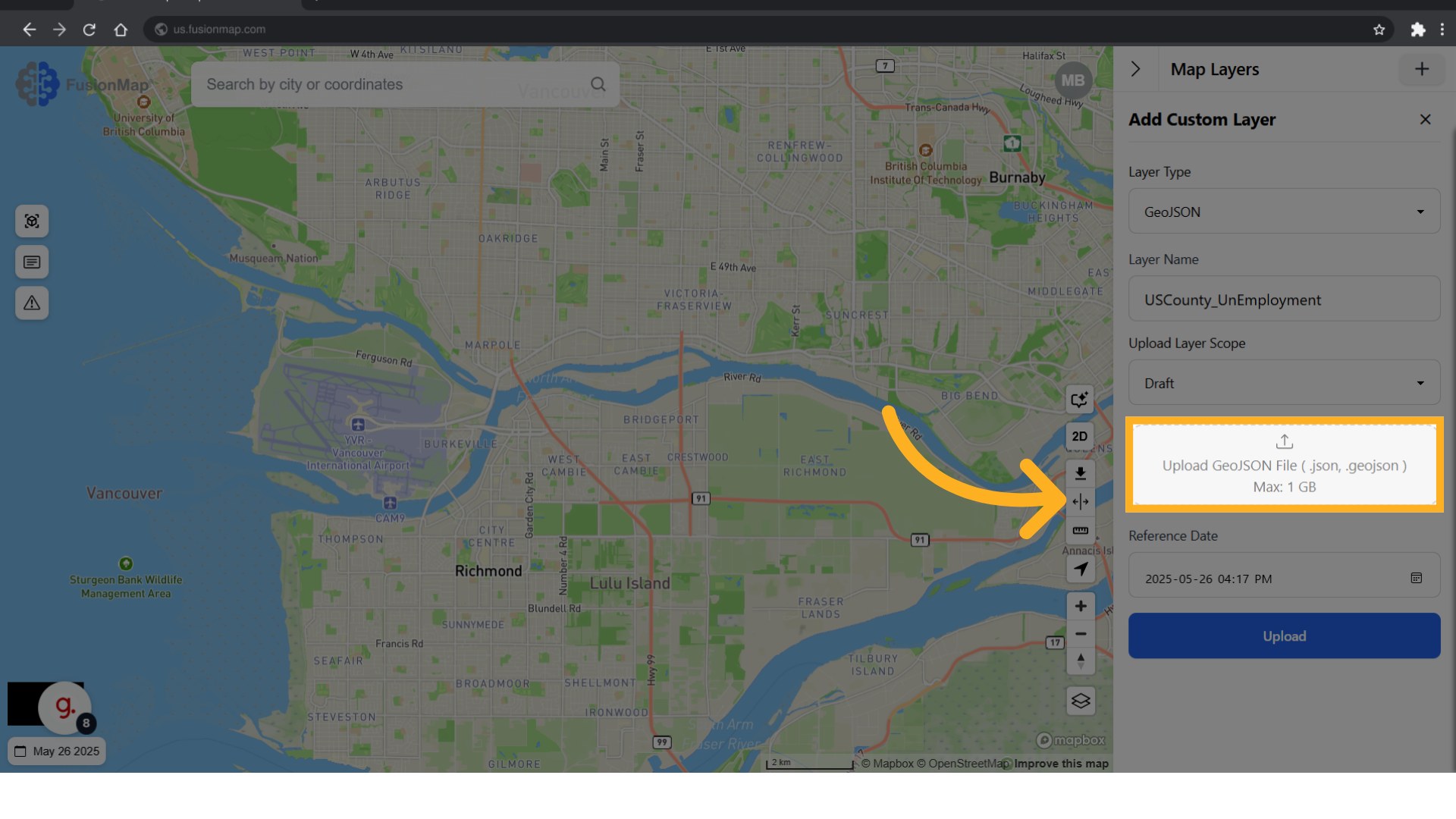
7. Upload your GeoJSON file #
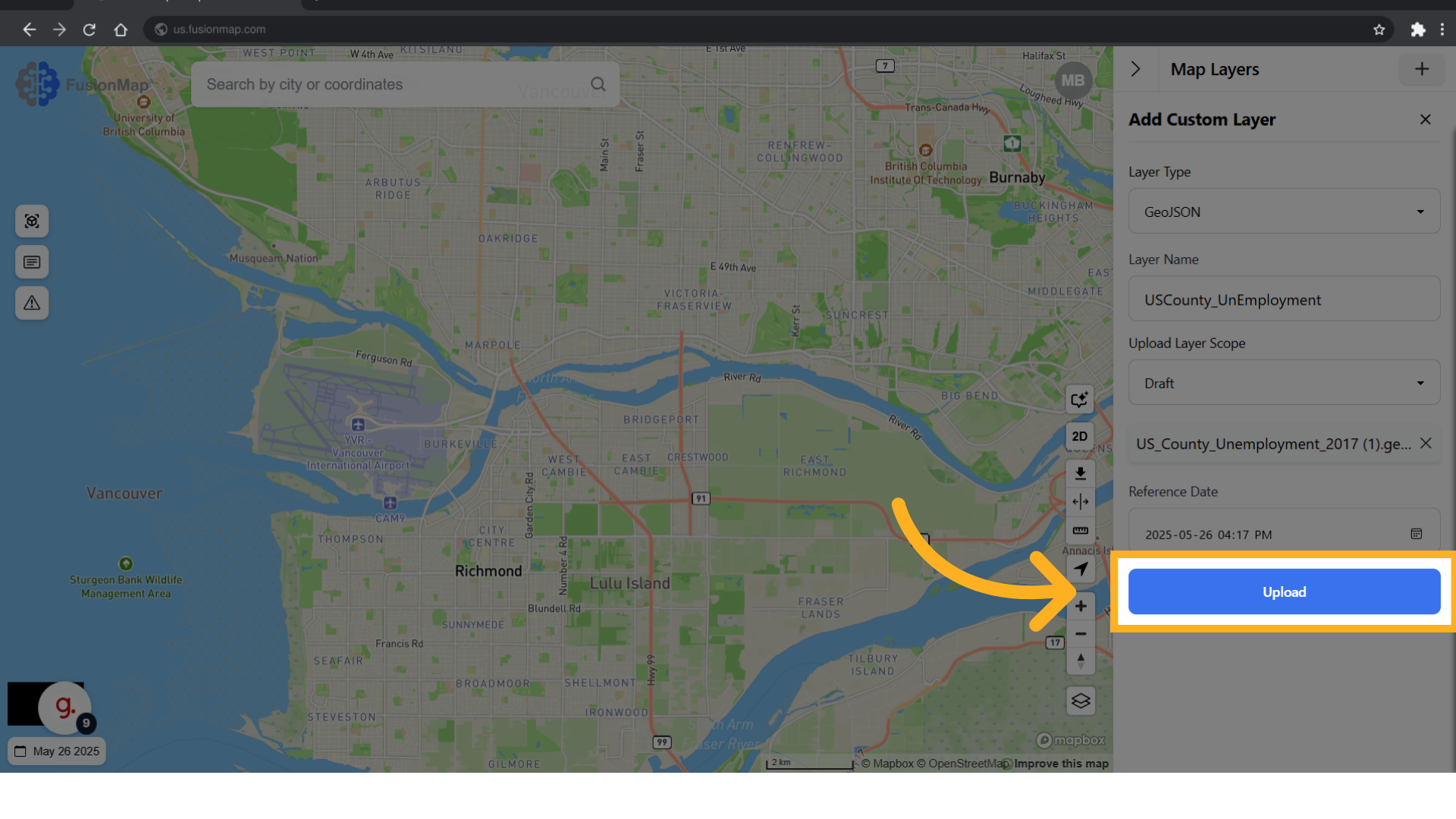
8. Click “Upload” #
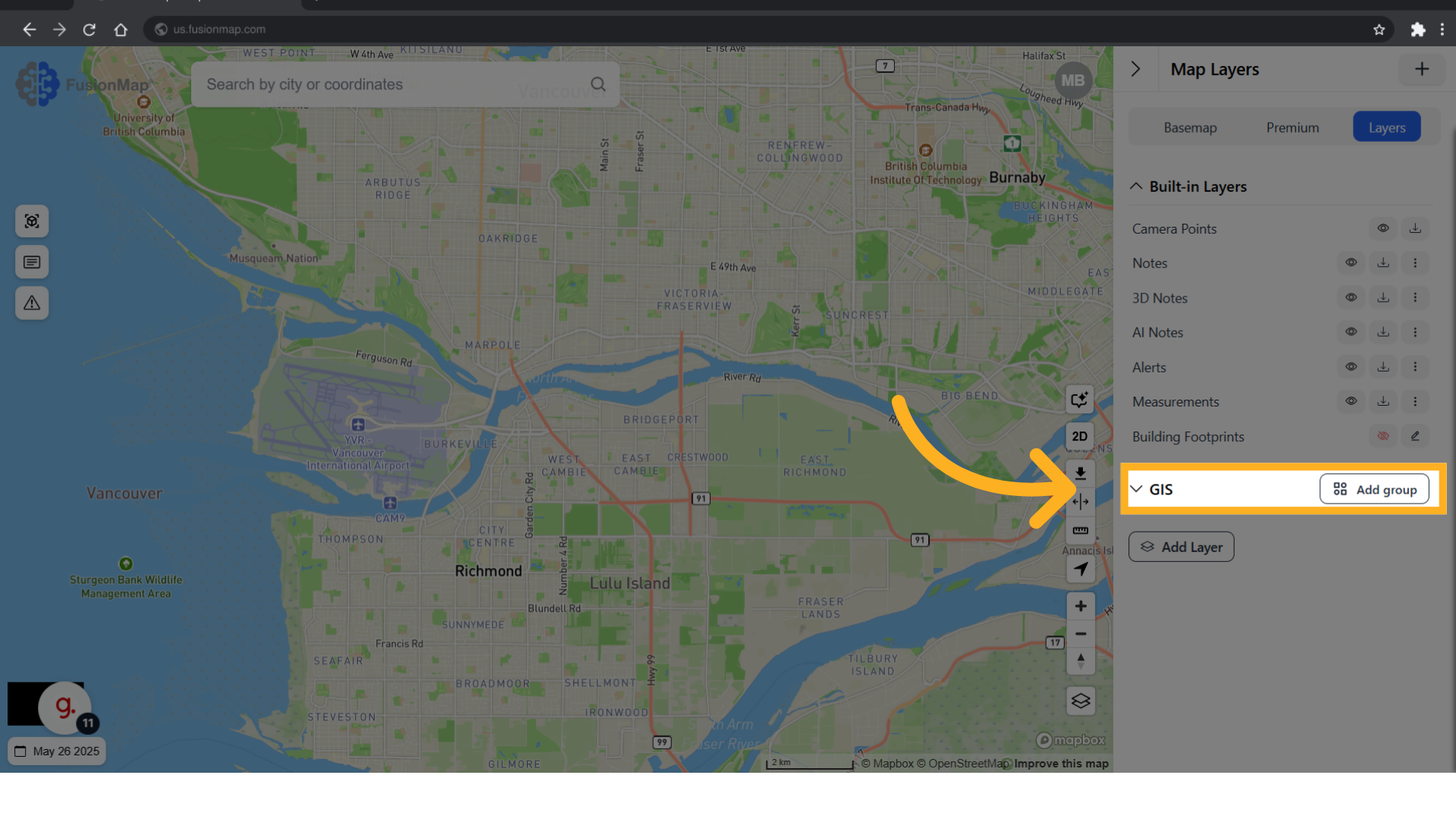
9. Expand the GIS dropdown #
10. All your GIS layers will be visualized here #
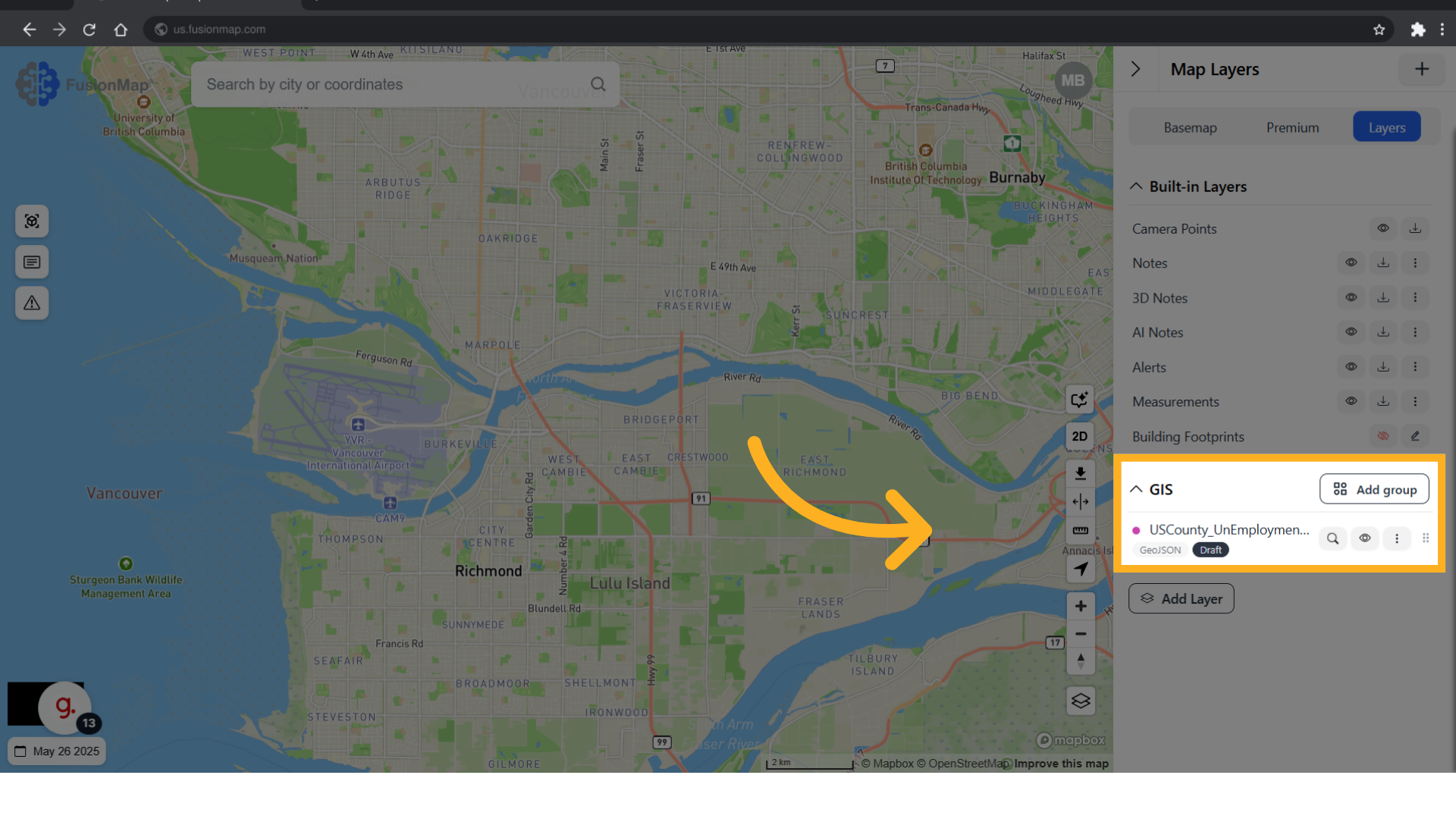
11. Click the search icon #
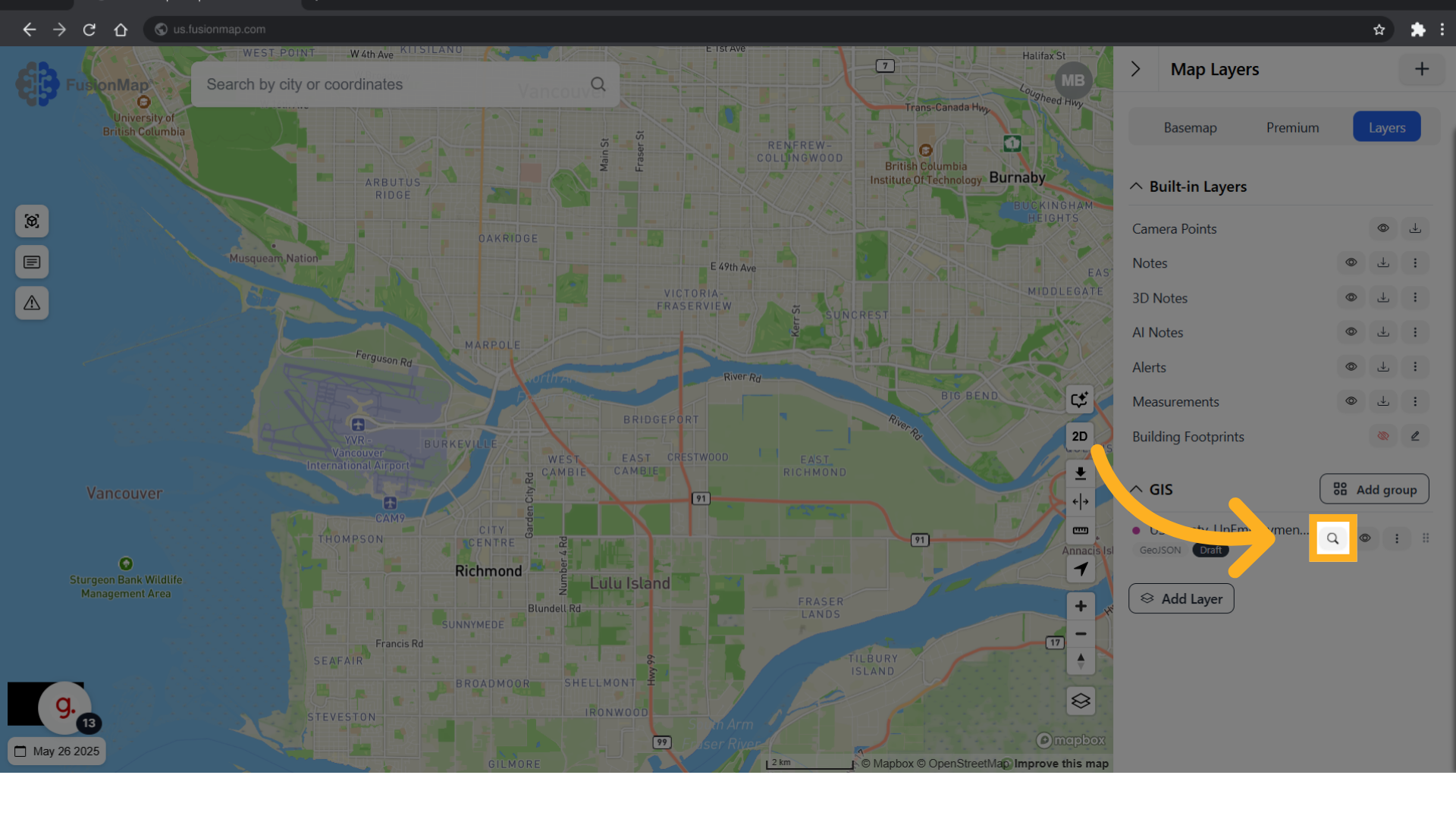
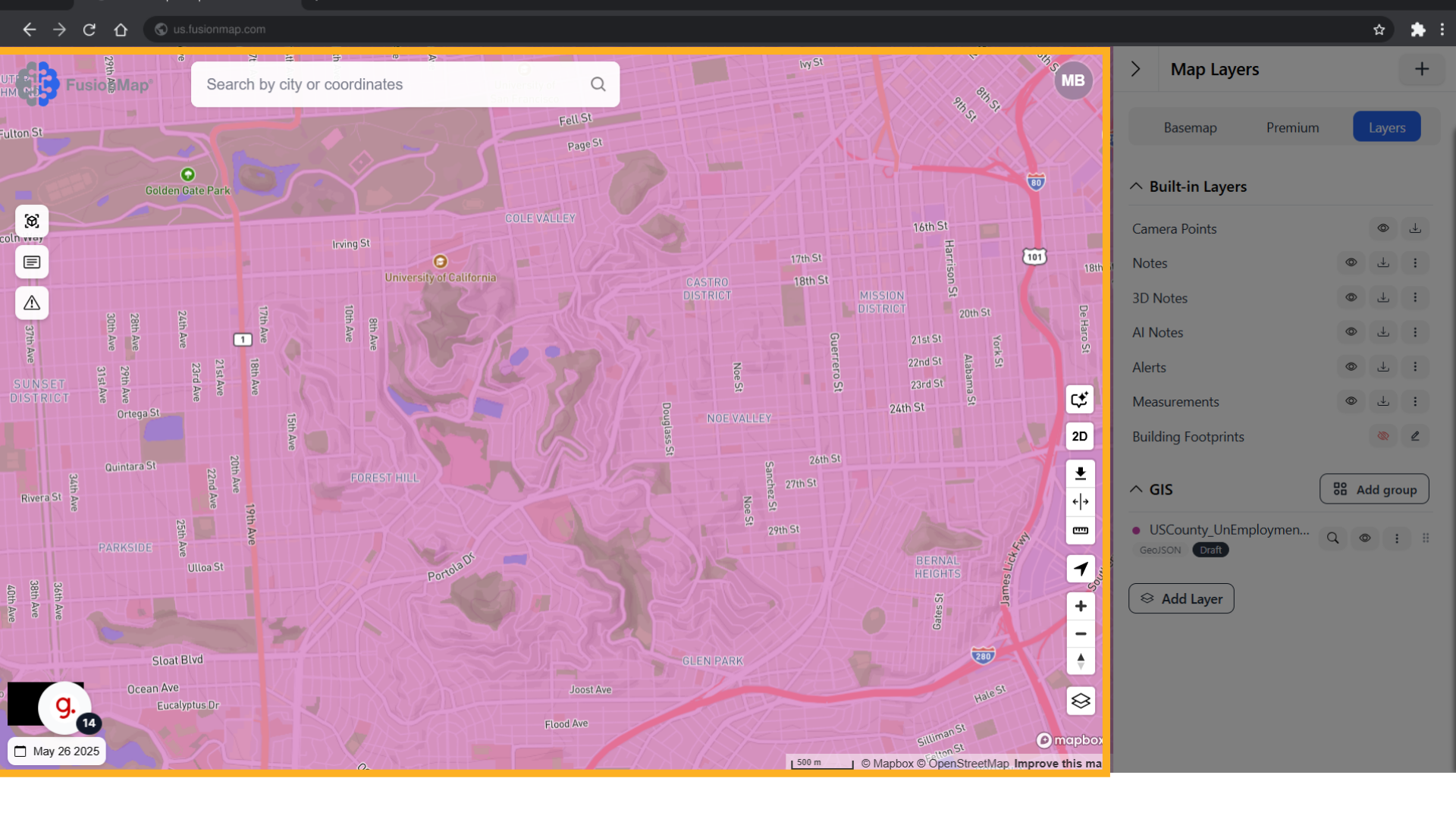
12. This takes you to your visualized layer #
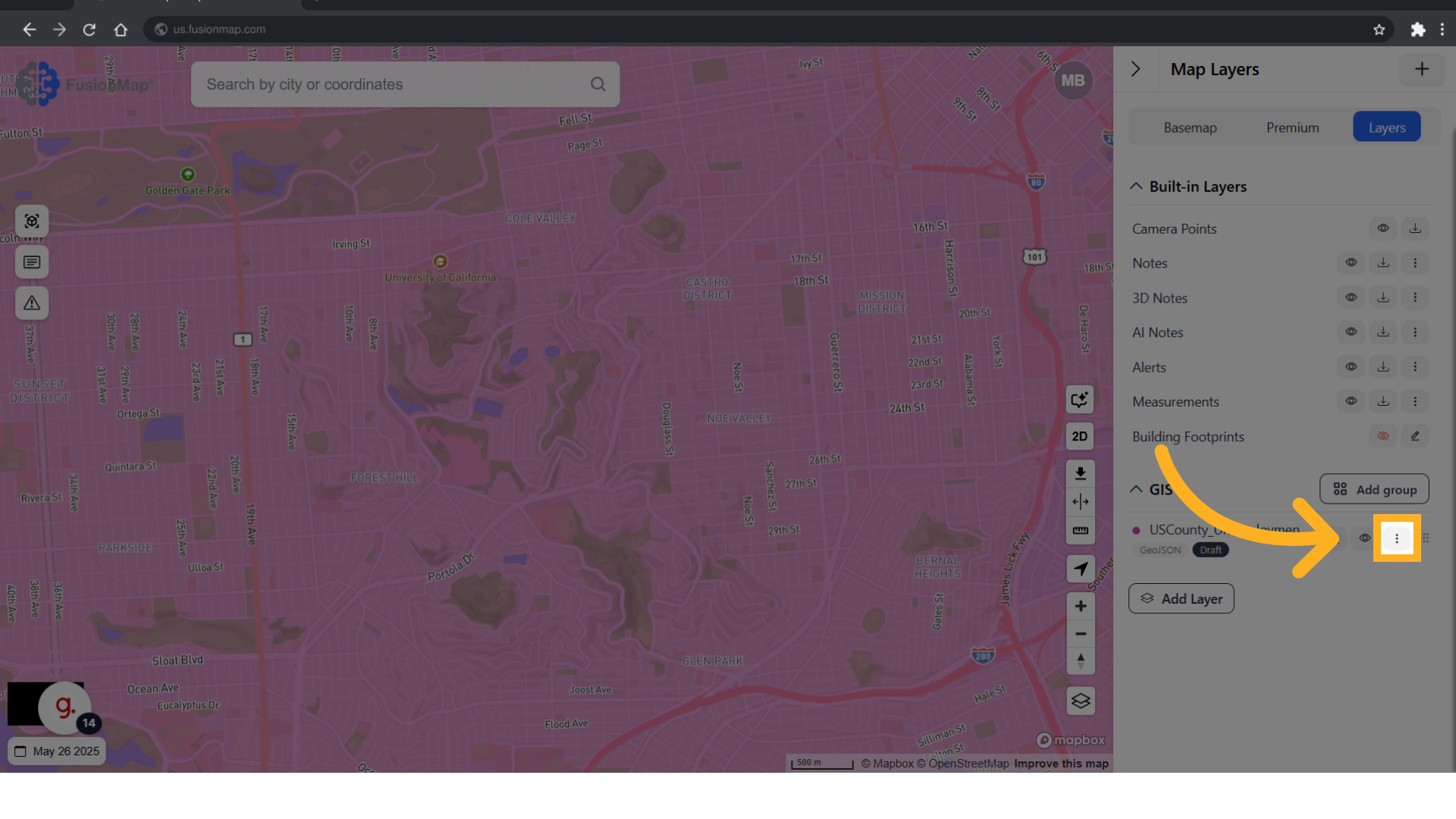
13. Click settings #
14. Click “Edit” #
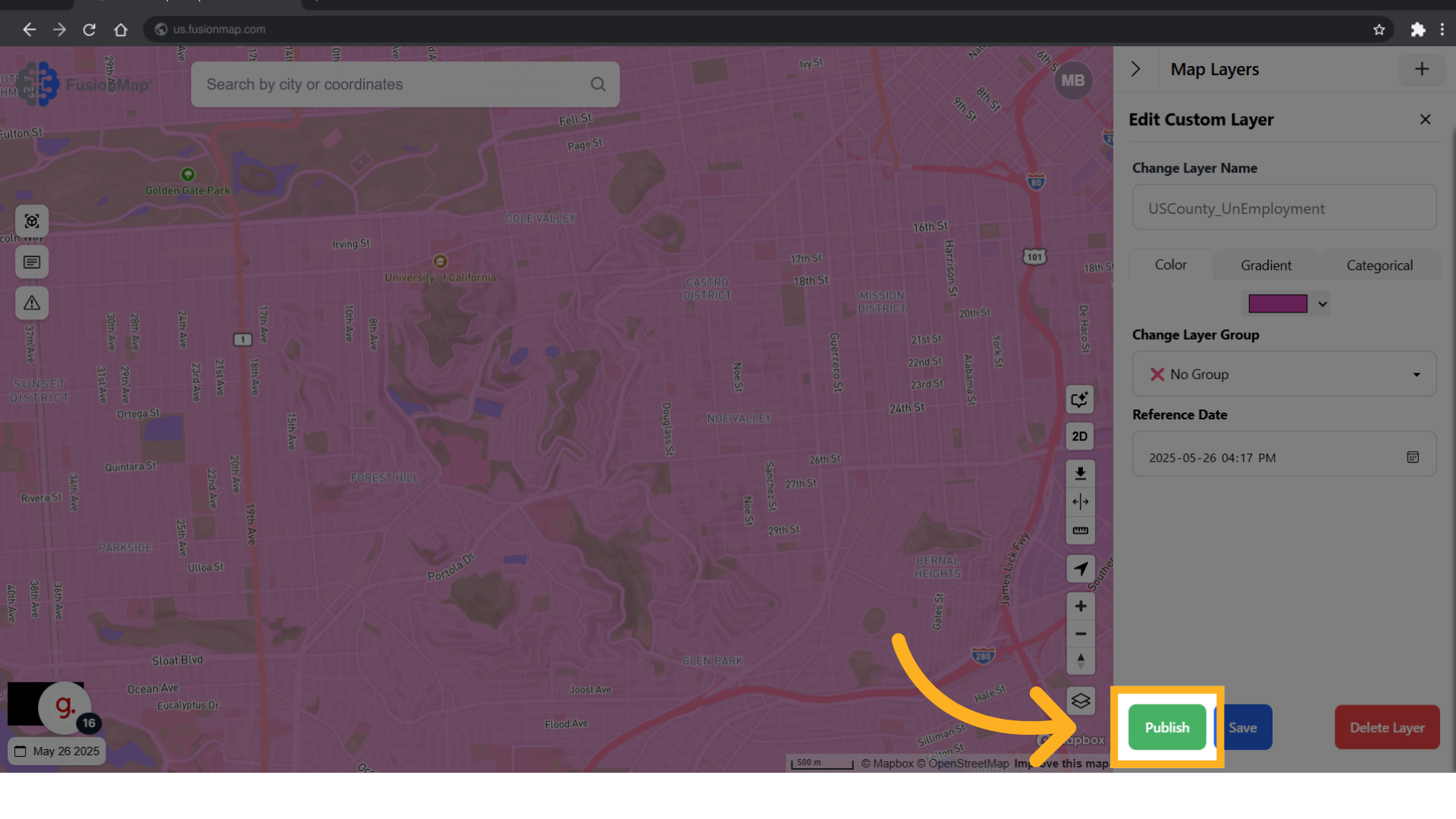
15. Switch the layer between being “published” and a “draft” #
You’ve now learned how to upload a GeoJSON file to FusionMap—enabling efficient integration of geographic data into your projects.