

In this tutorial, you’ll learn how to upload WMS and WMTS layers in FusionMap, allowing you to integrate external map services into your projects.
1. Click here #
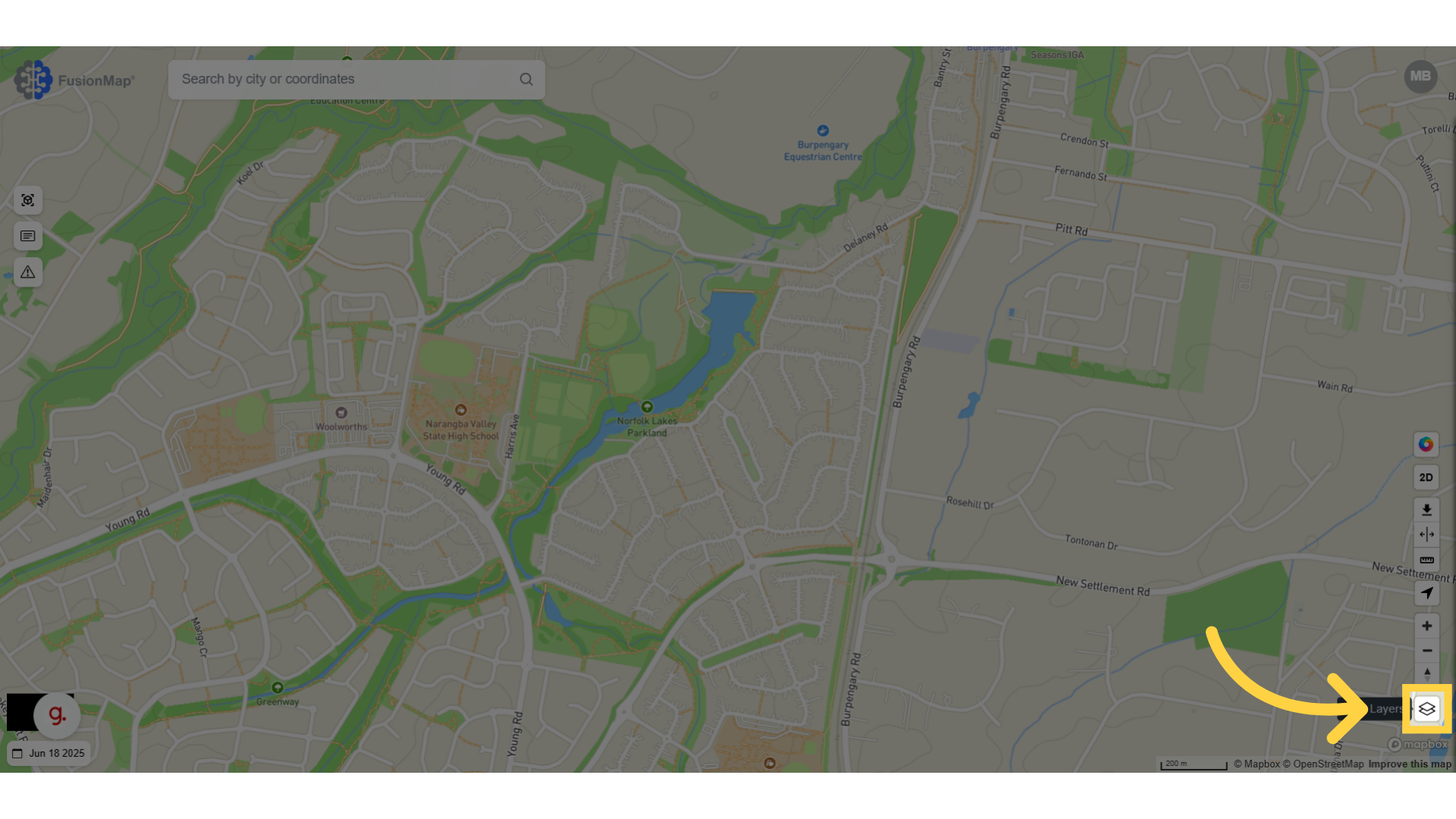
2. Click “Layers” #
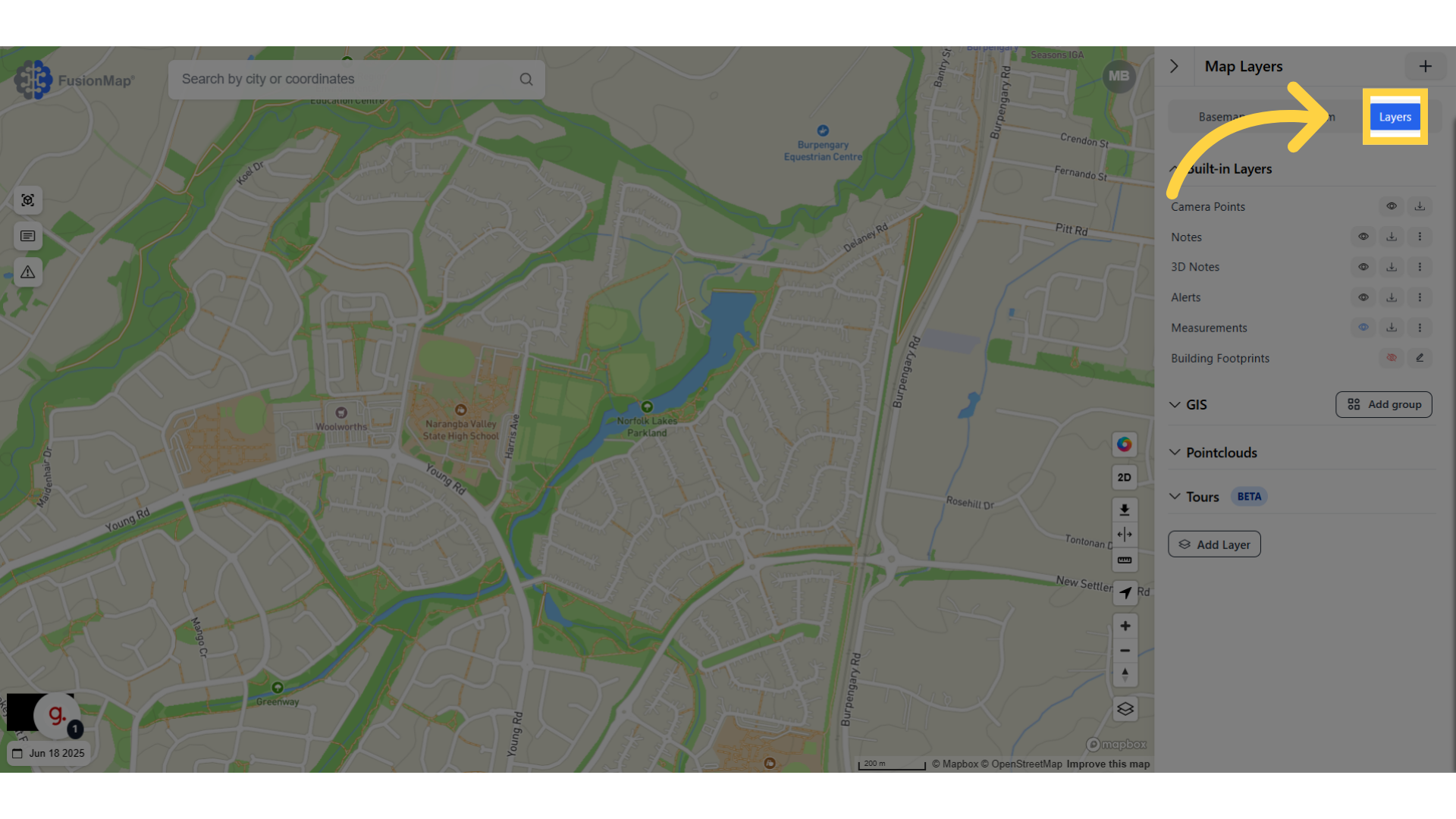
3. Click “Add Layer” #
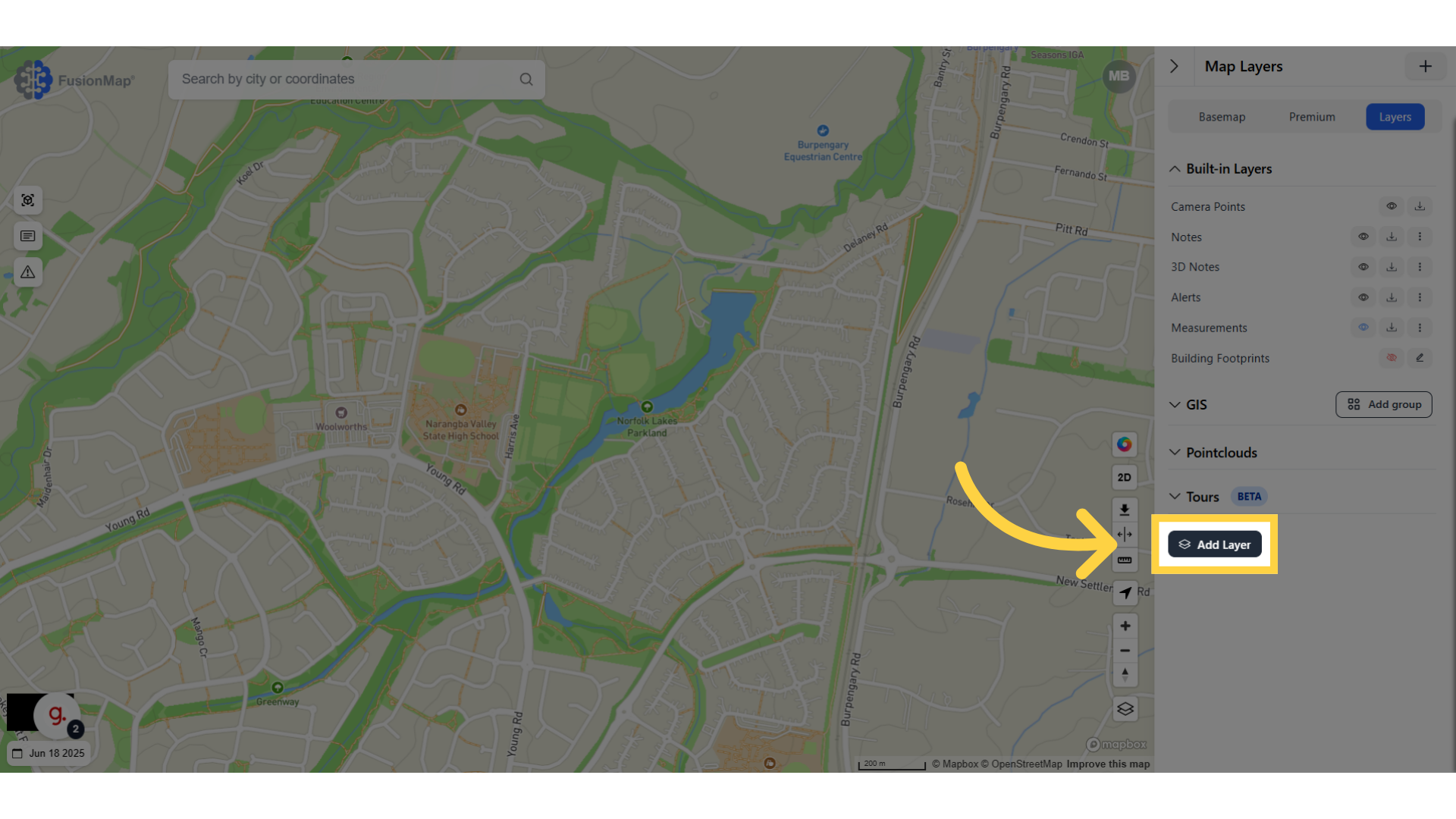
4. Choose WMS or WMTS Layer from the drop down menu #
For this demonstration, we will be choosing WMS.
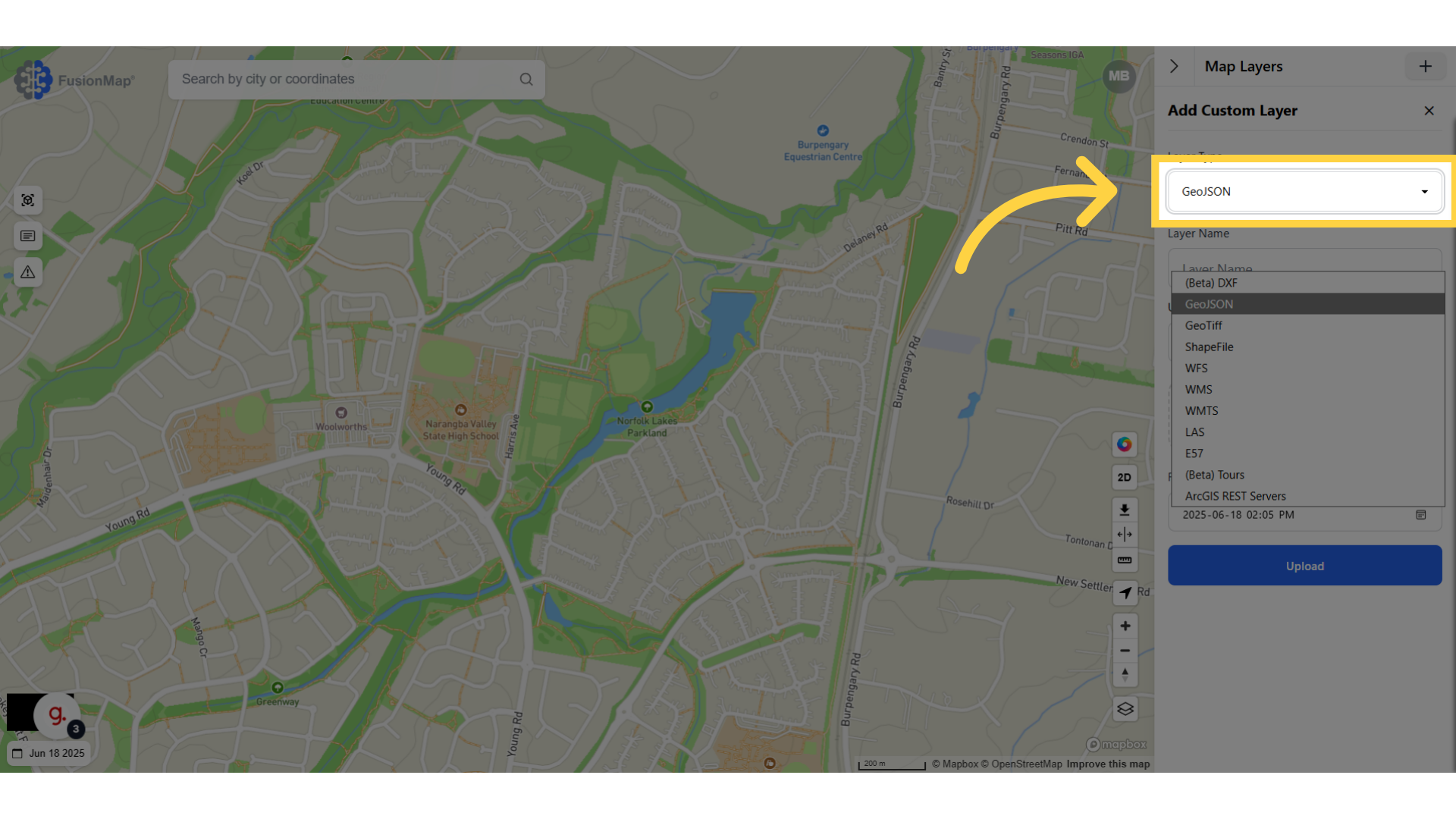
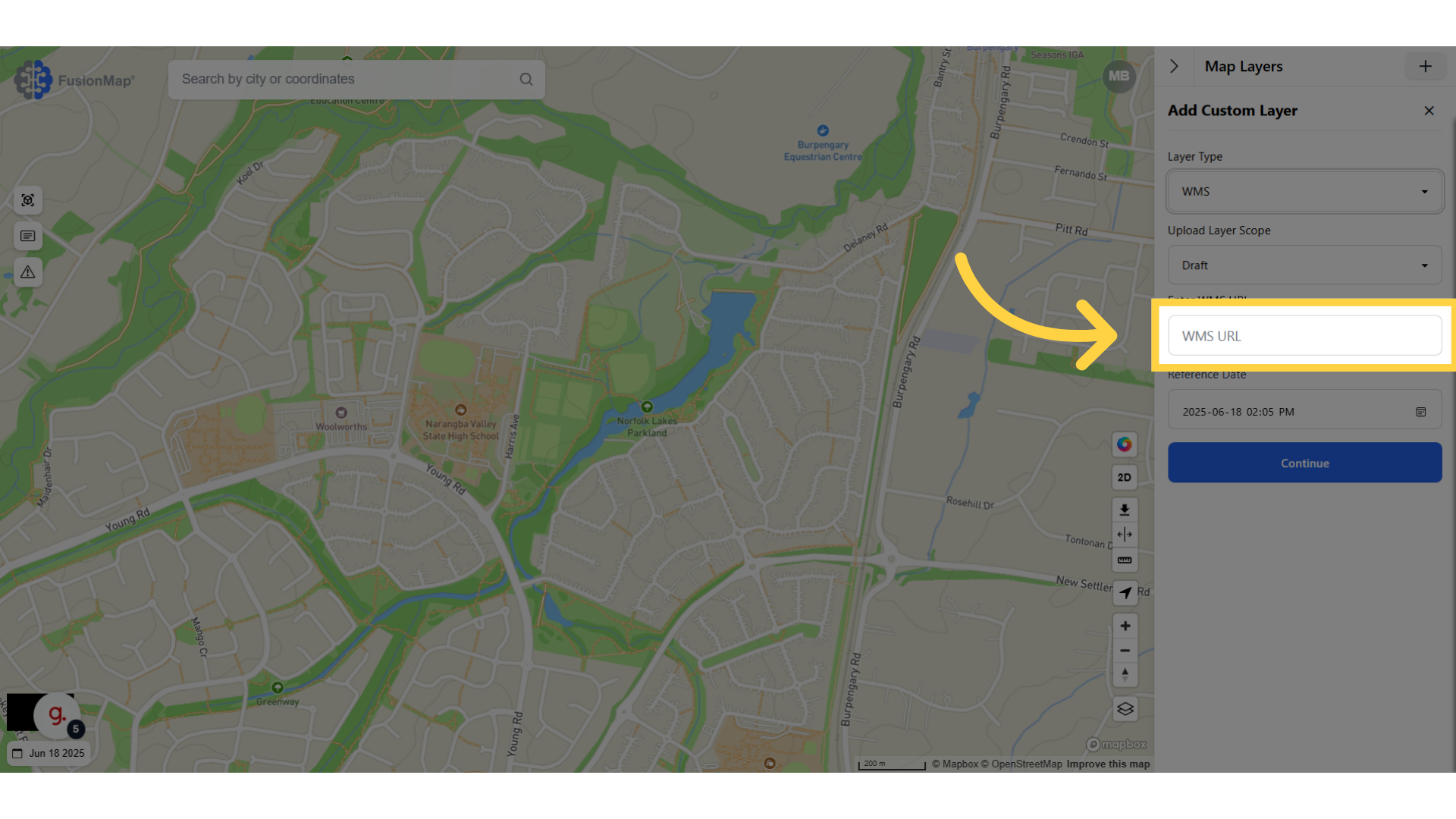
5. Paste your WMS/WMTS URL #
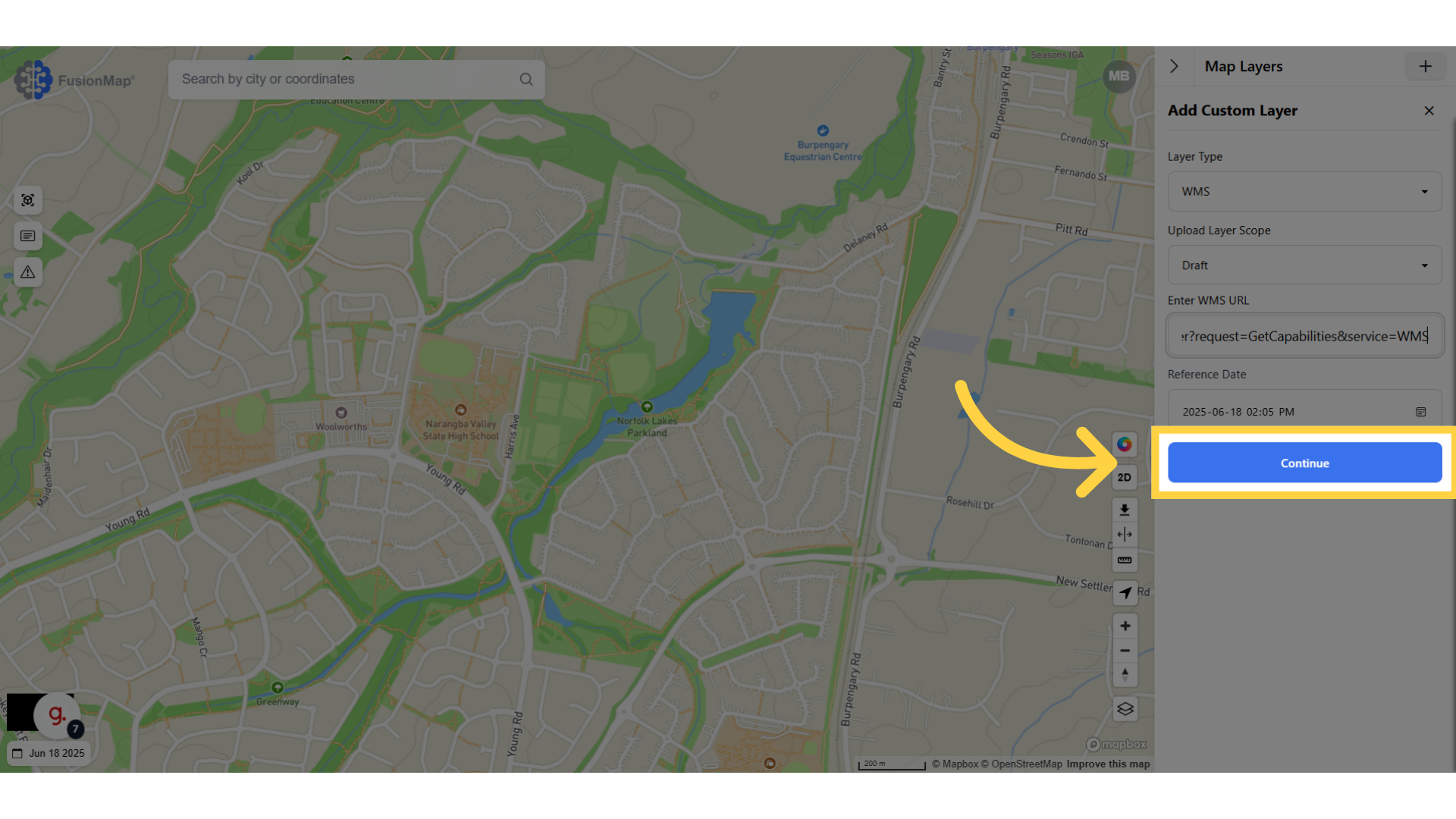
6. Click “Continue” #
Proceed to the next step.
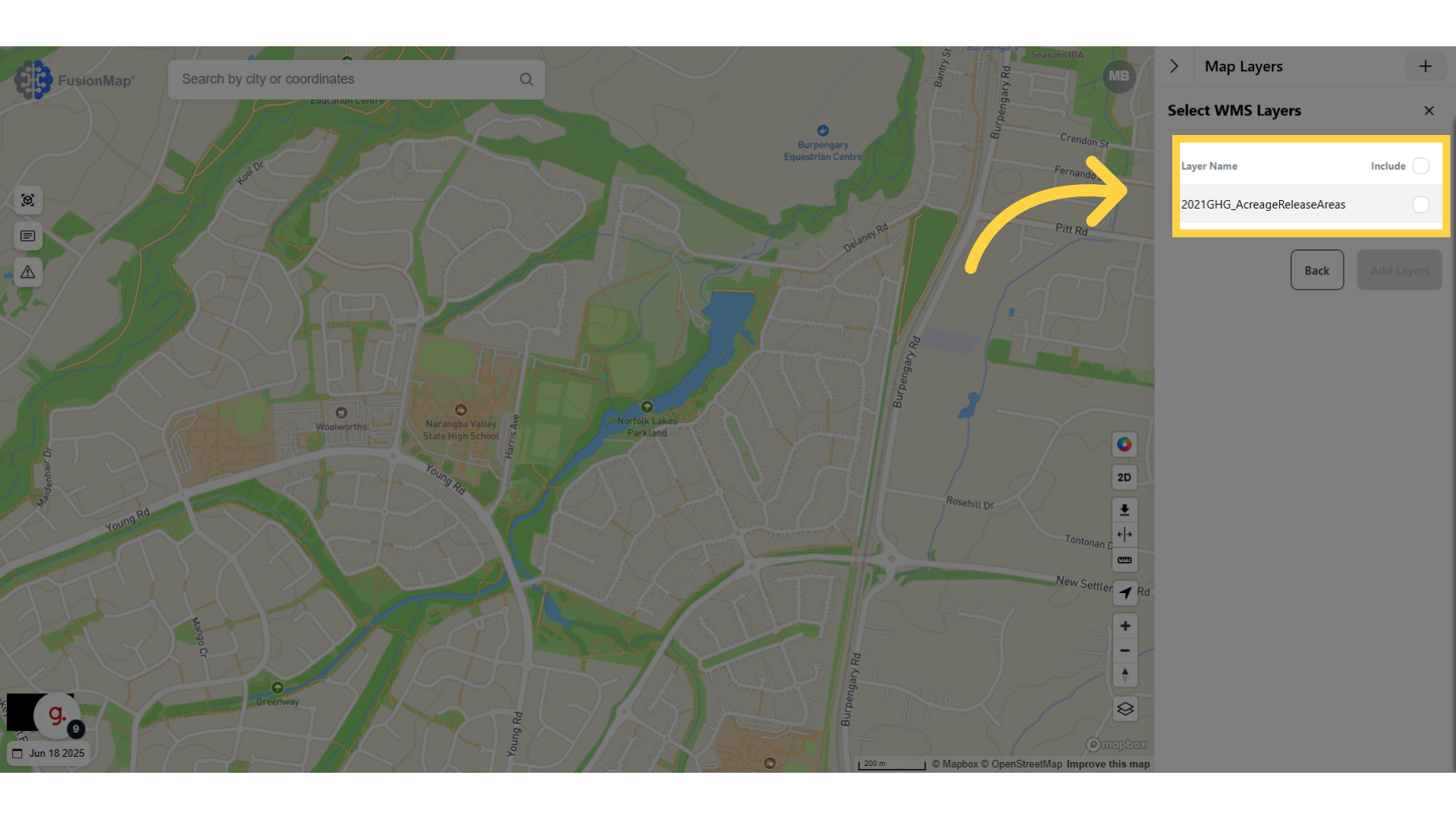
7. Choose which layers to load #
Since our URL only had one layer, we will be choosing that and loading it.
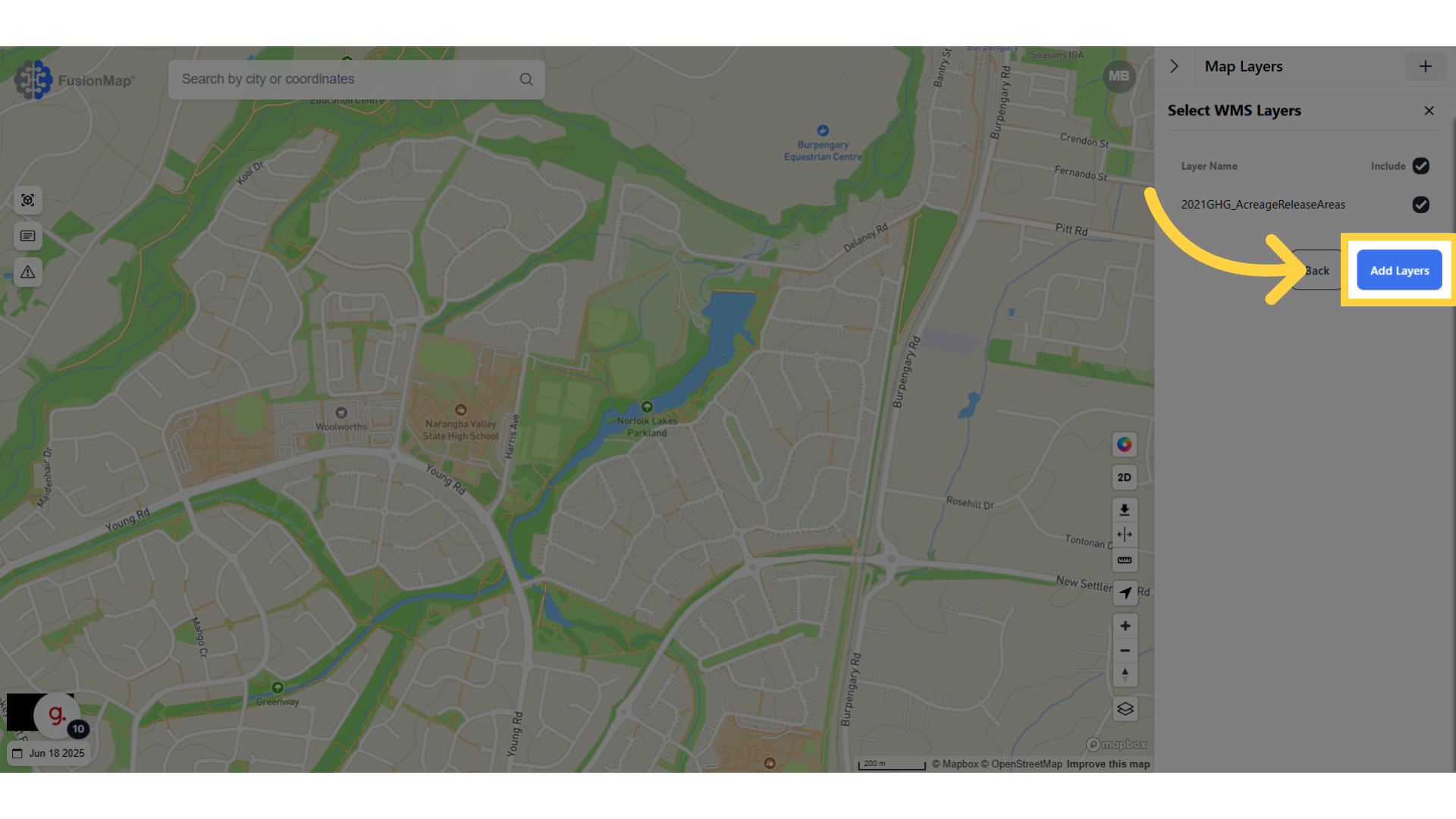
8. Click “Add Layers” #
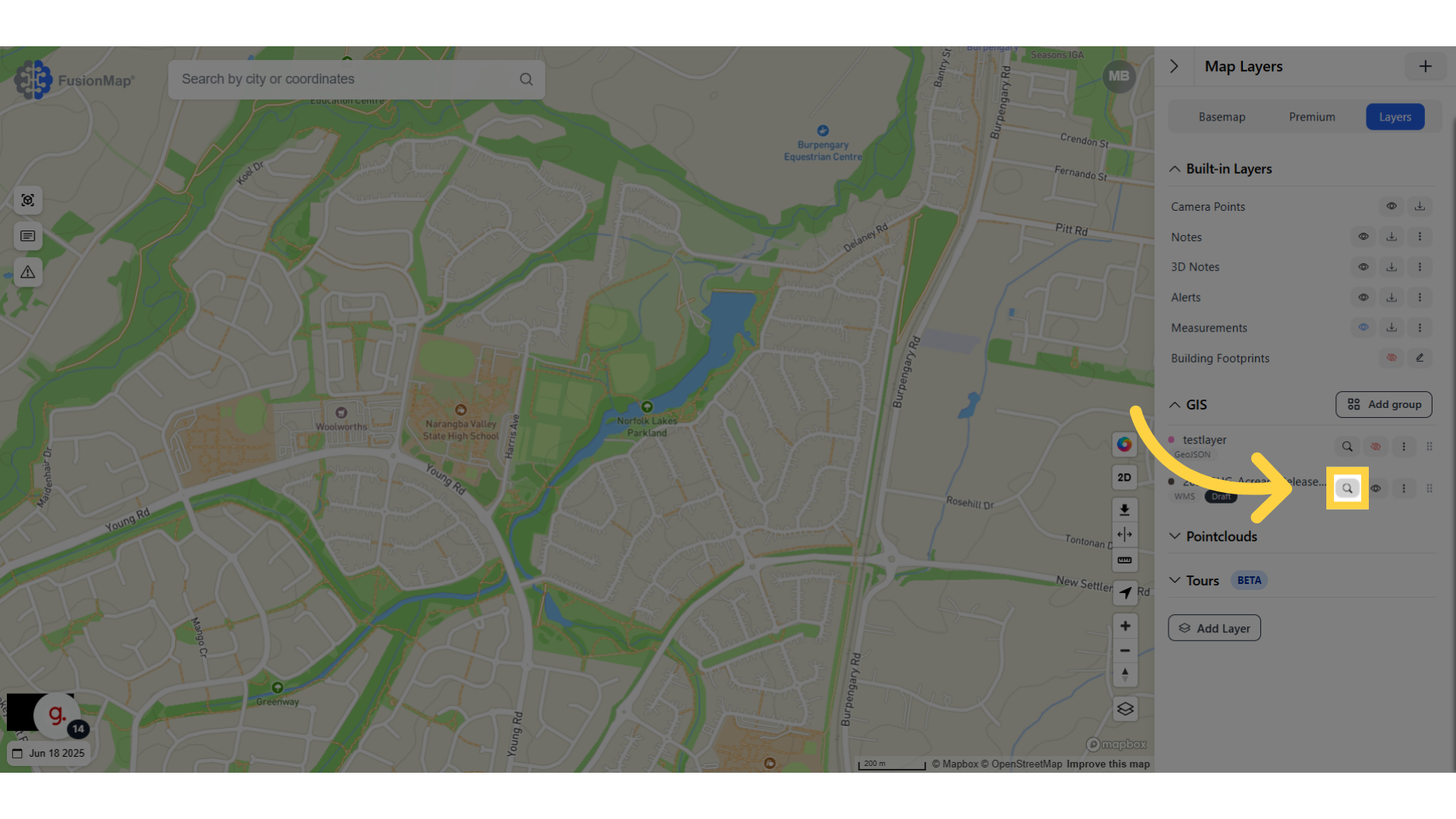
9. Click on the search icon to navigate to your layer #
You’ve now seen how to upload WMS and WMTS layers in FusionMap—enhancing your project with dynamic, external geospatial data sources.