

Enhance your Fusionmap experience by mastering notes and threads
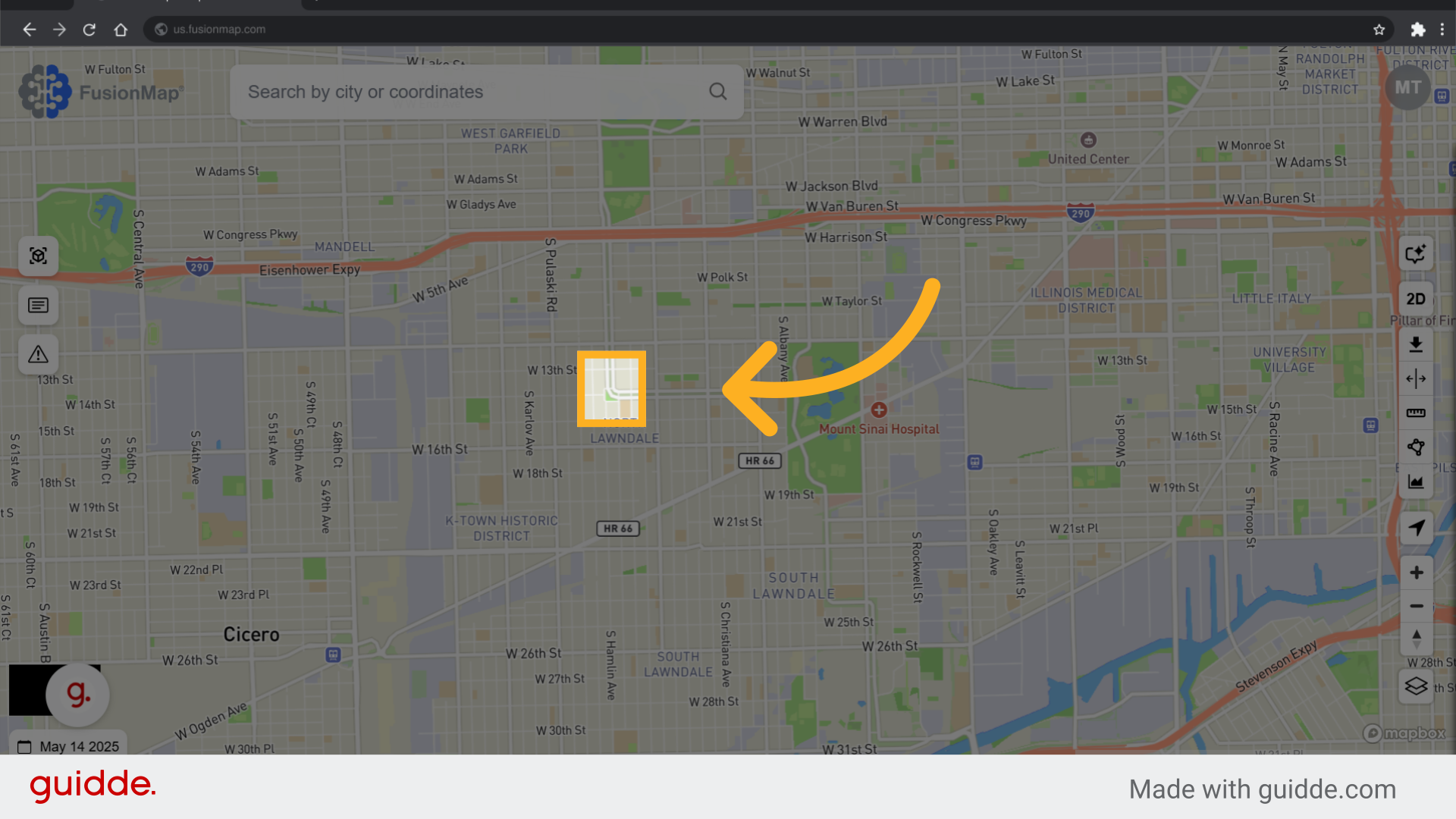
1. Click where you want the note #
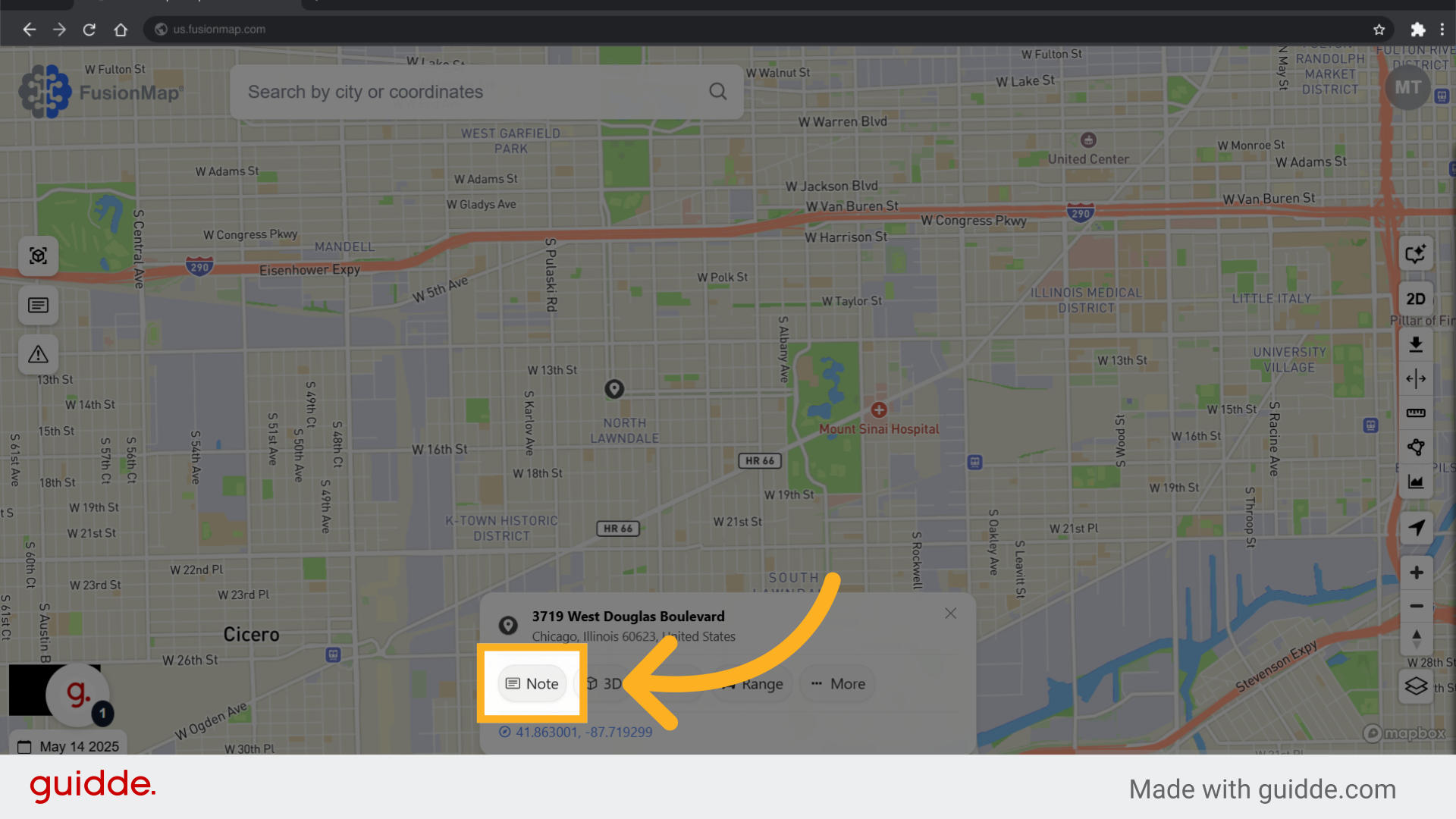
2. Click “Note” #
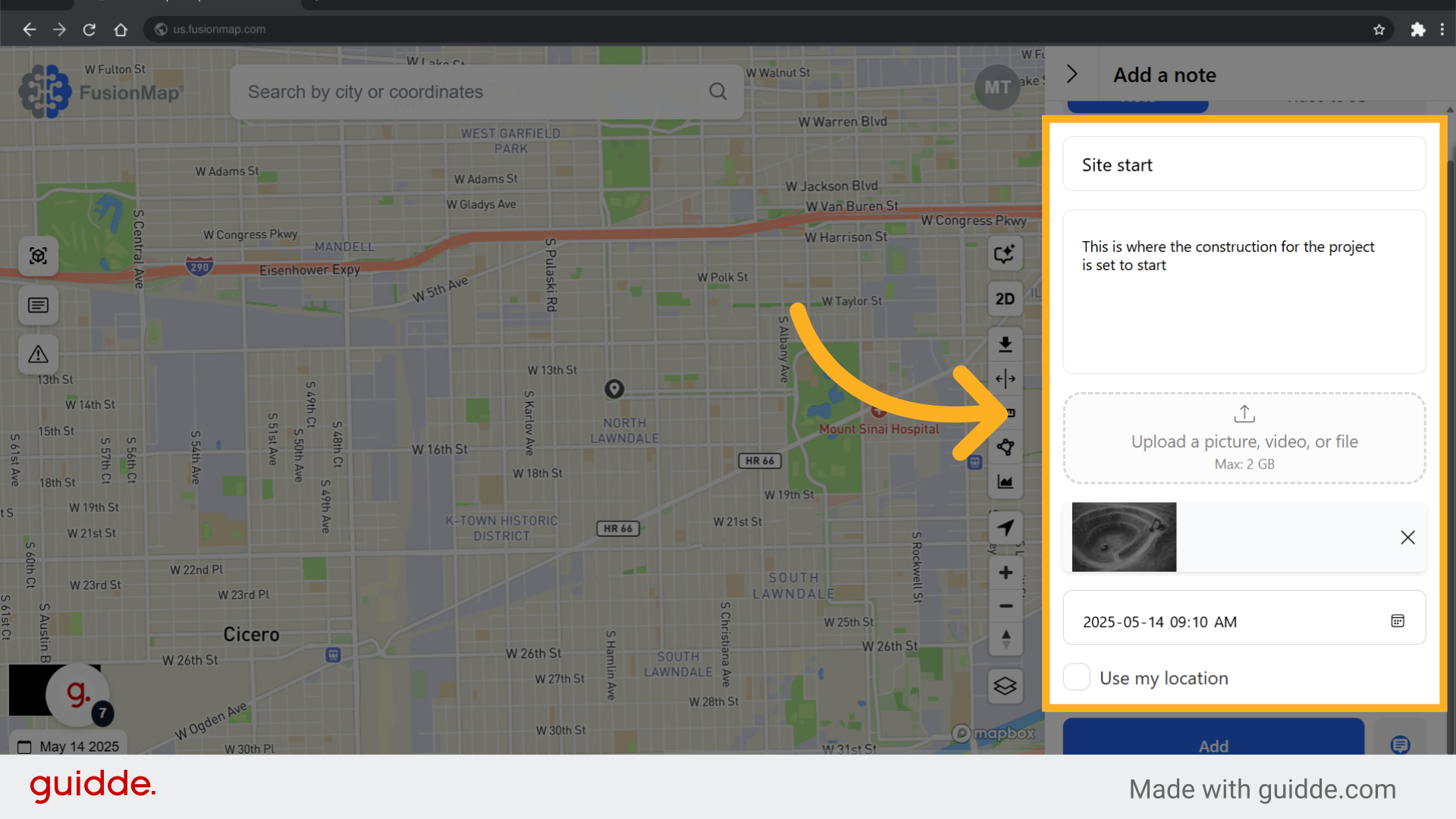
3. Fill in the note details #
Input a name, description, upload a photo and change the date and time (if necessary).
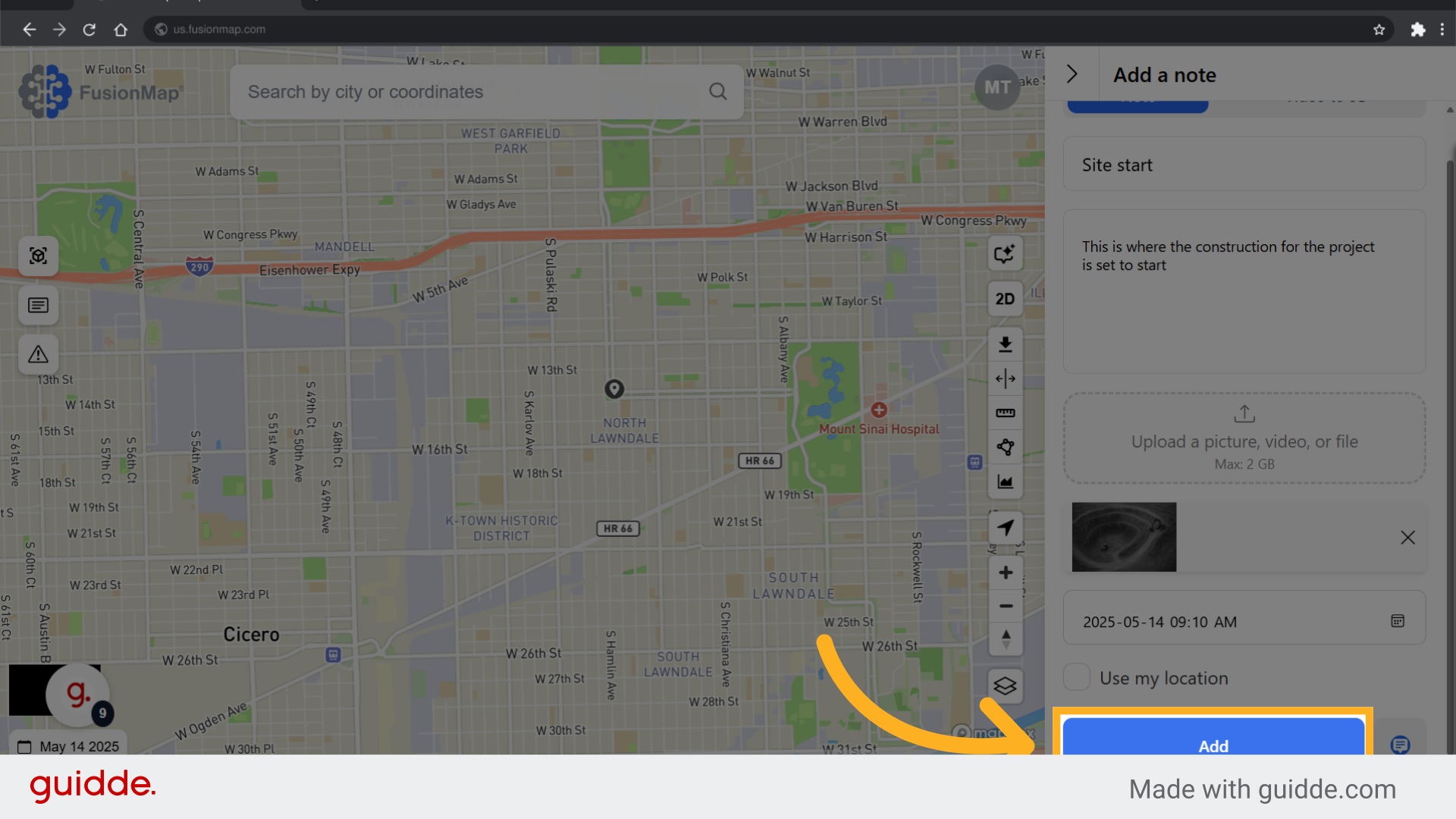
4. Click “Add” #
5. Your note is visualized on the map #
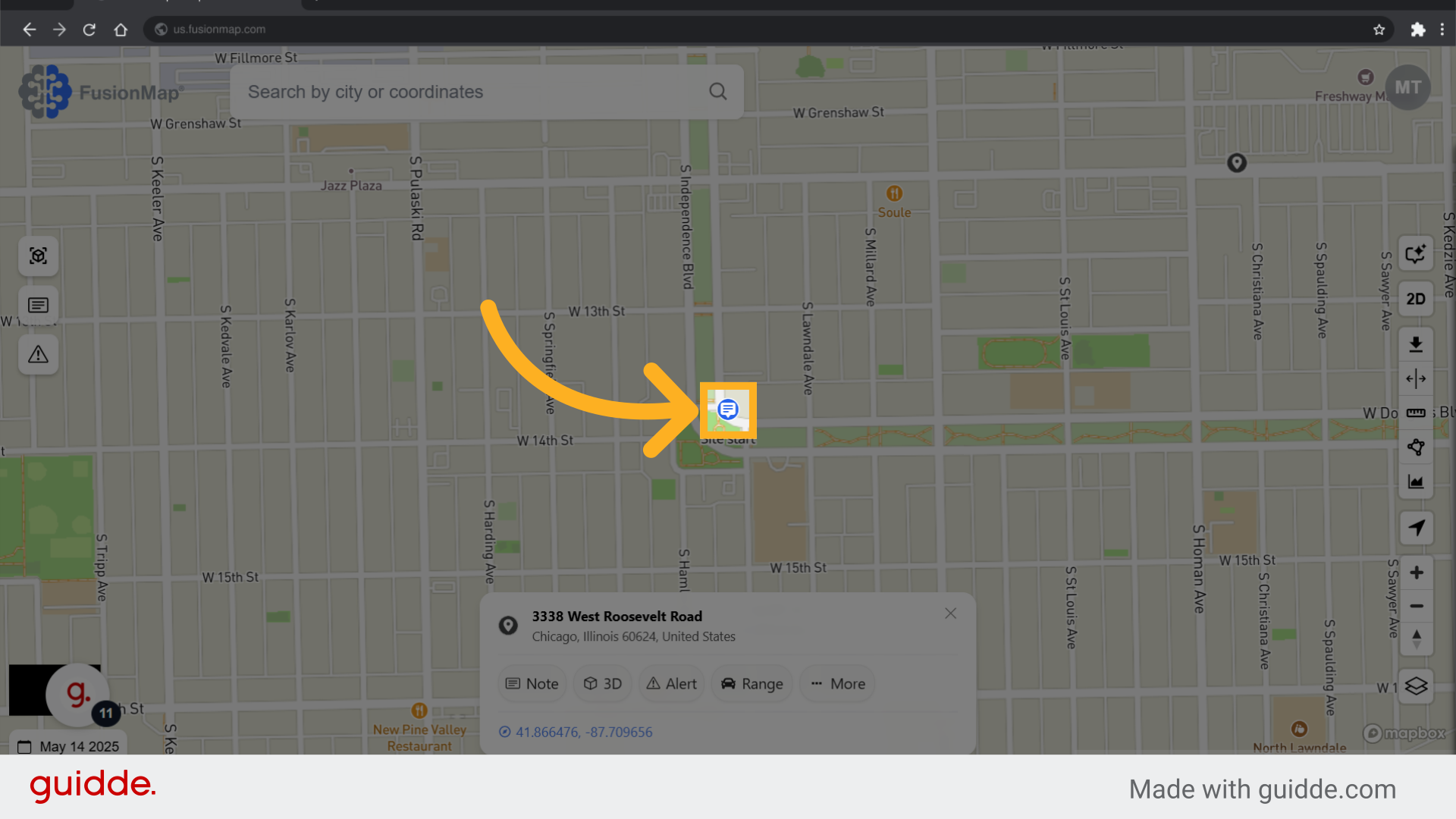
6. Click the note to get to threads #
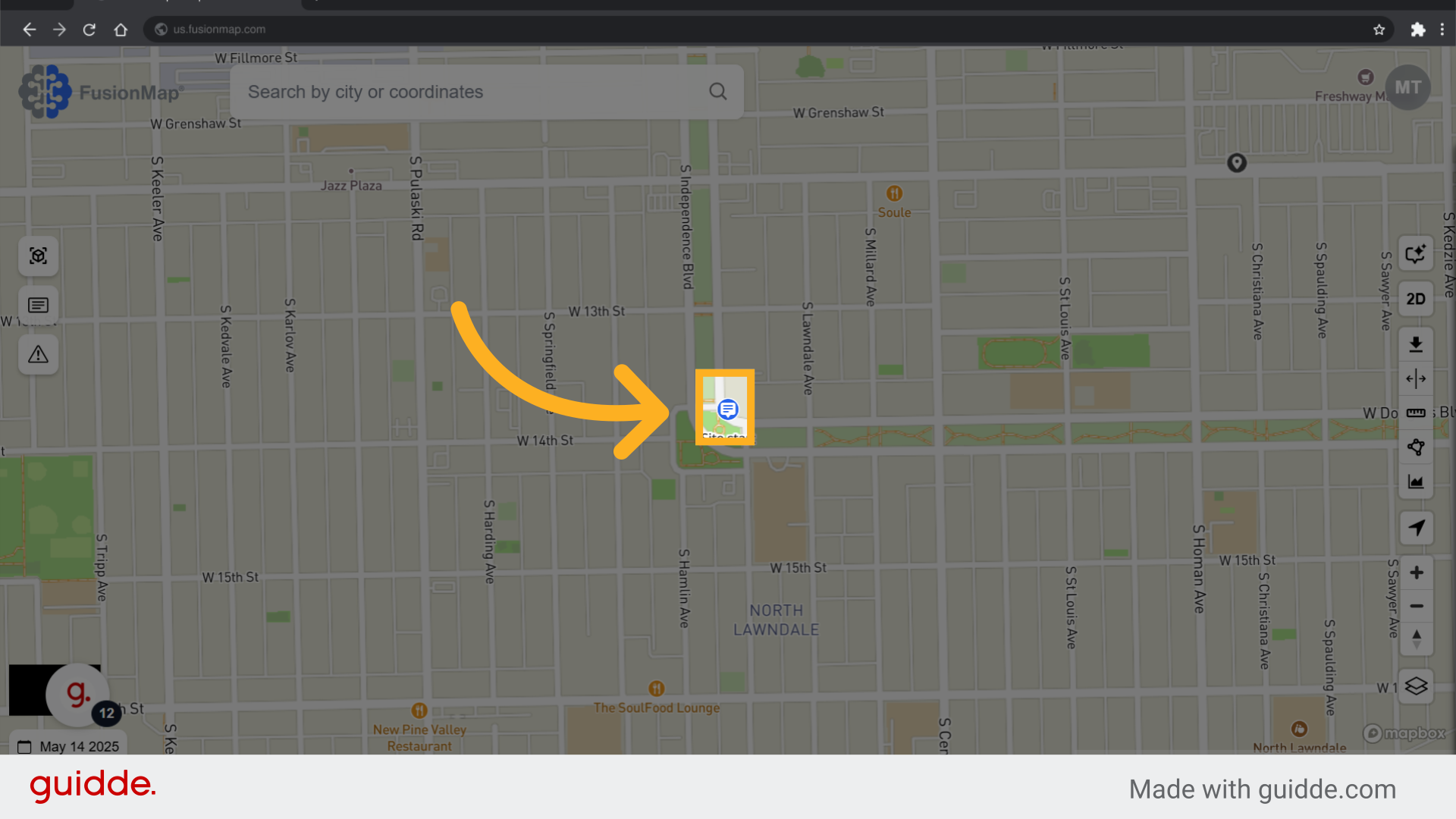
7. This opens the threads menu #
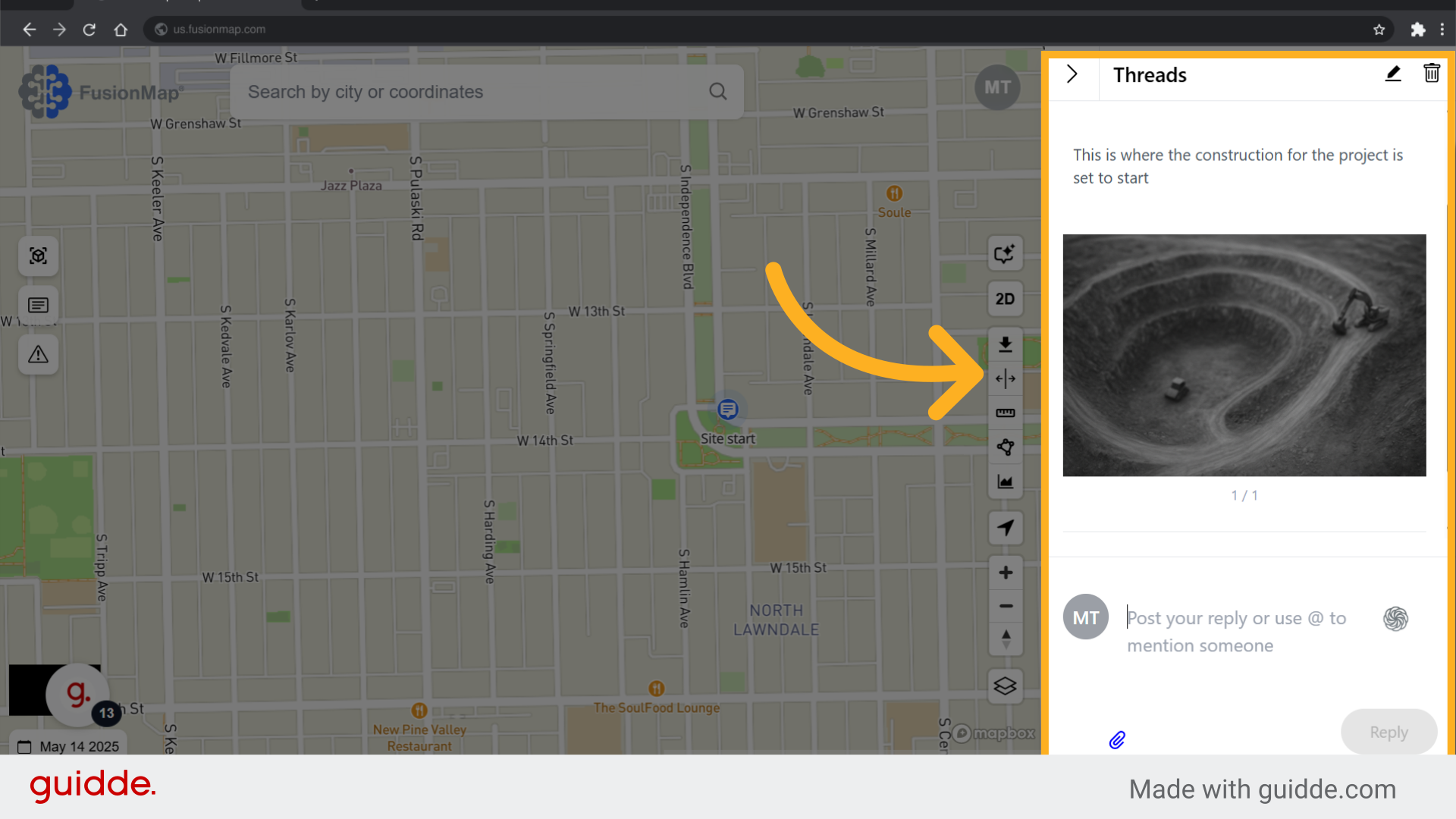
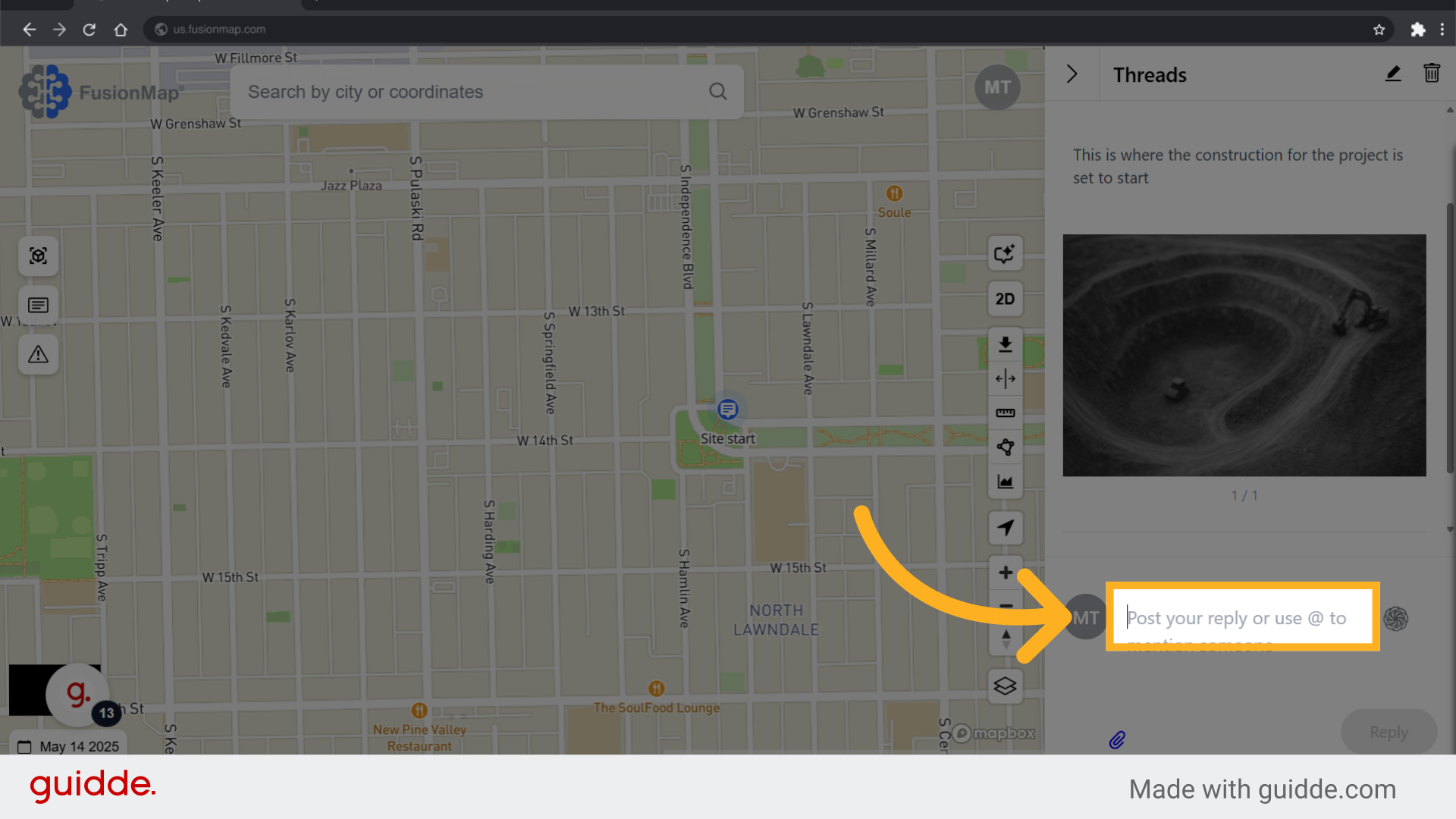
8. Reply or tag people in the note #
You and other users in the project will be able to reply to and tag people in the note.
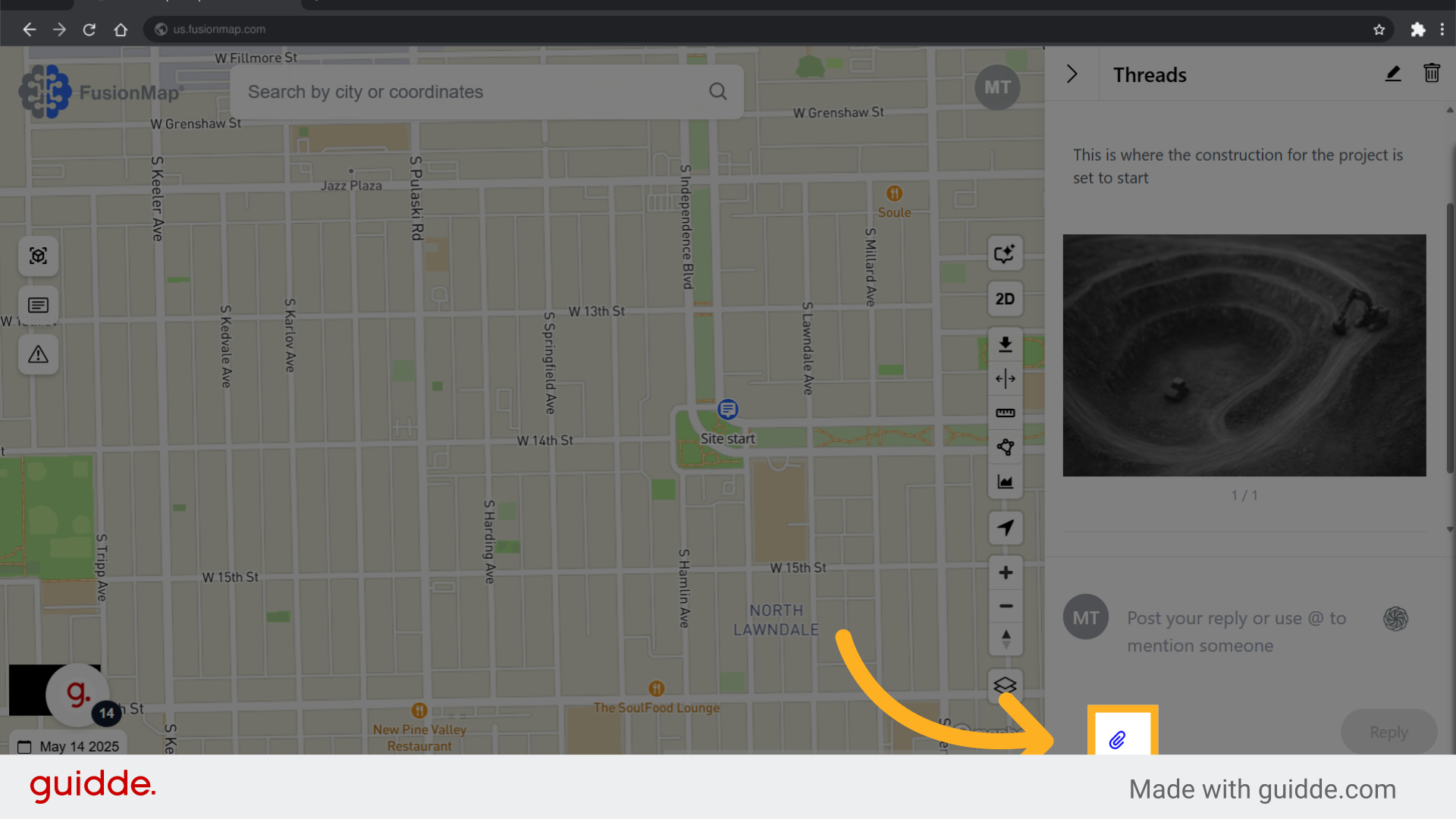
9. Upload an image #
If your reply includes an image, you are able to upload one with your reply.
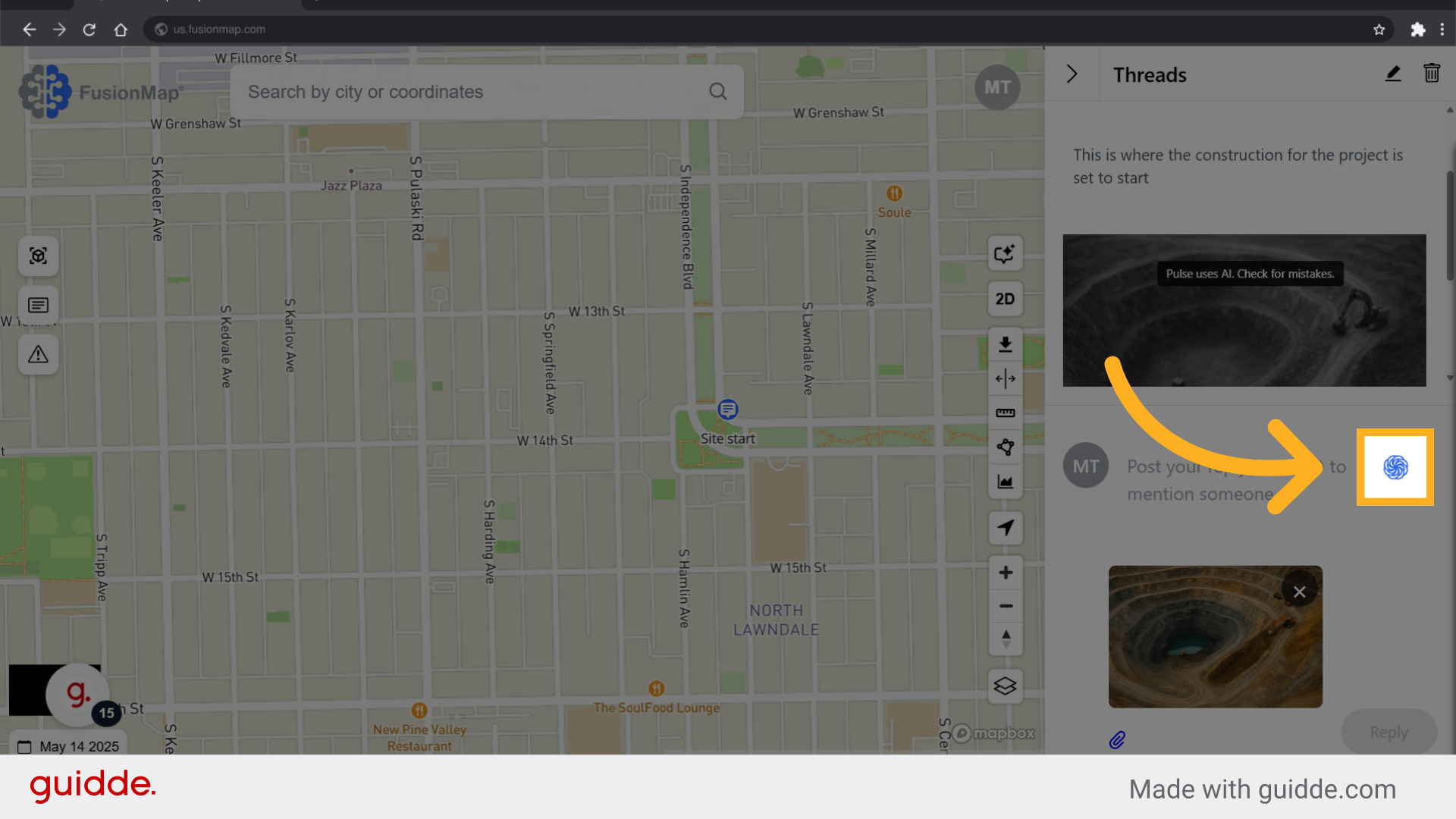
10. Get Pulse AI to generate a description #
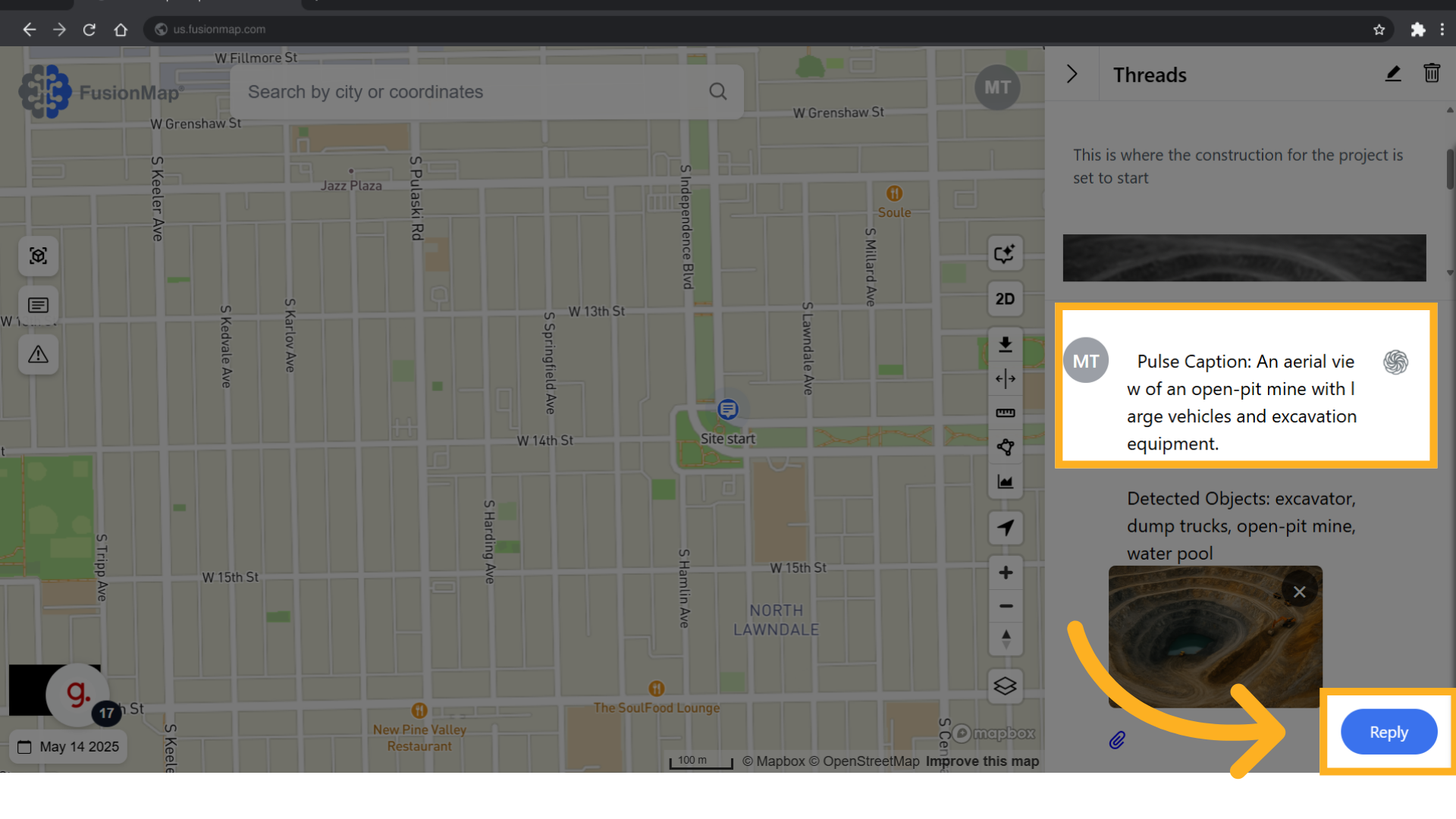
Pulse AI generates a description for the image automatically, saving you time.
11. Click “Reply” #
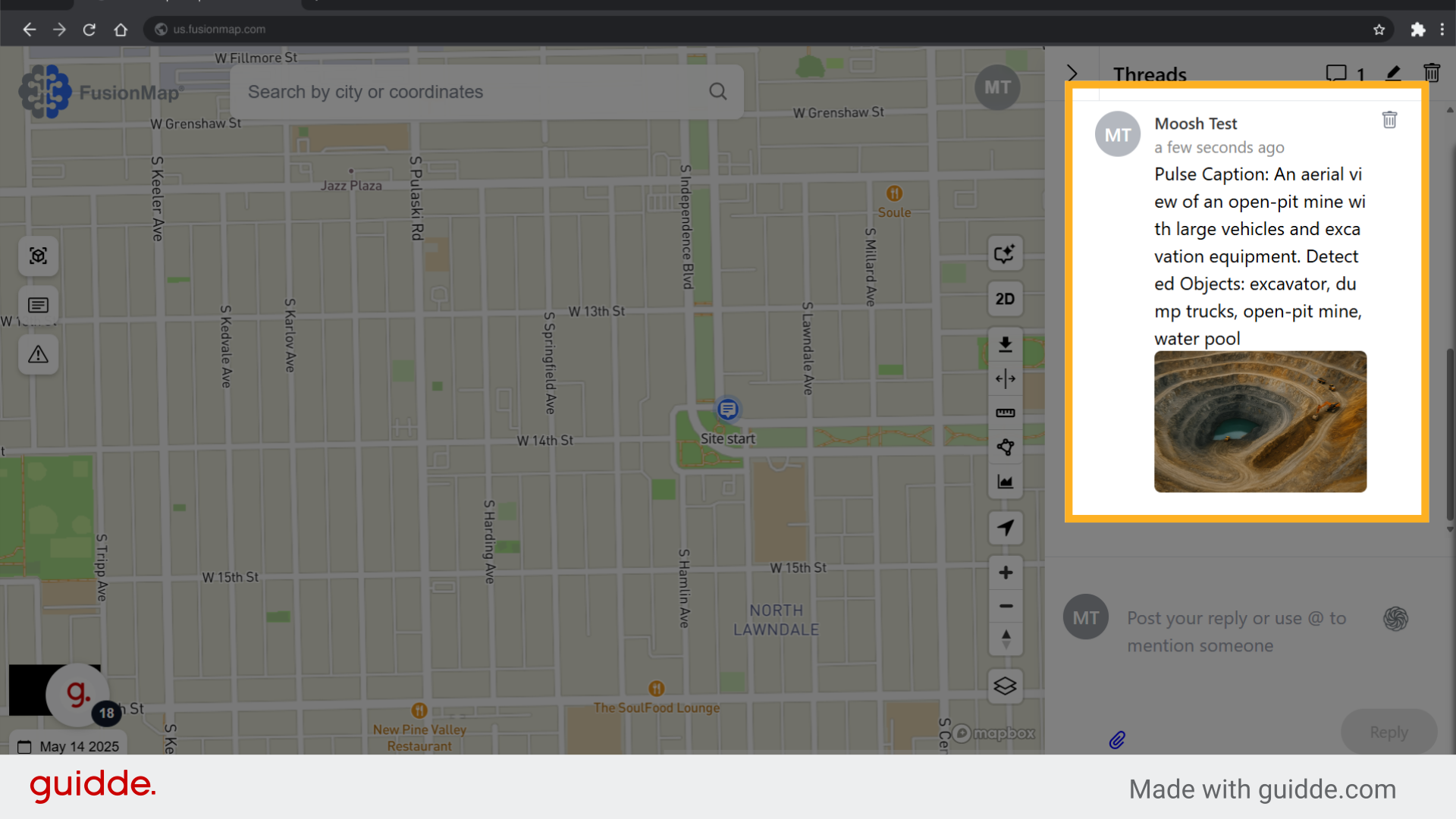
12. Your generated caption along with the image is posted in the thread. #
Master the art of using notes and threads in Fusionmap with this comprehensive guide. Learn to create, manage, and respond to notes and threads effectively to streamline communication and collaboration within your team.